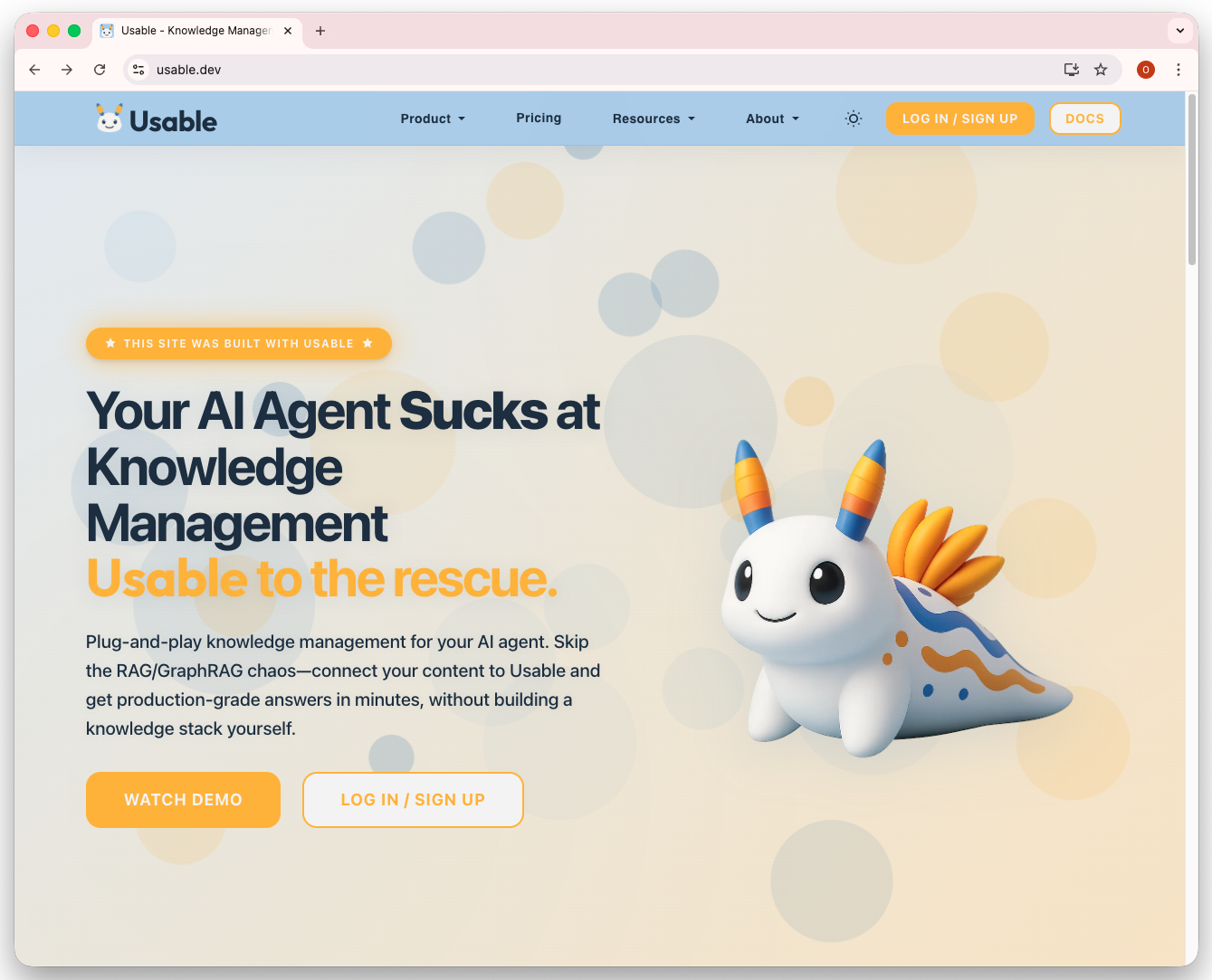
The Usable Landing Page: The page introduces Usable's core value: organisation-owned memory that approved AI tools can use. You can watch a demo or sign up immediately.
Follow how workspaces, fragments, Usable Chat, MCP, and API access work together to give AI tools approved organisational memory.
Click any screenshot to view it full-size.
Your journey begins at usable.dev, the home of your own organisational memory. The first message is simple: your AI tools need controlled knowledge they can actually use.
The Usable Landing Page: The page introduces Usable's core value: organisation-owned memory that approved AI tools can use. You can watch a demo or sign up immediately.
After logging in, you land on the Workspaces dashboard, your central hub for organizing knowledge. Each workspace can contain memory fragments, team members, and custom configurations.
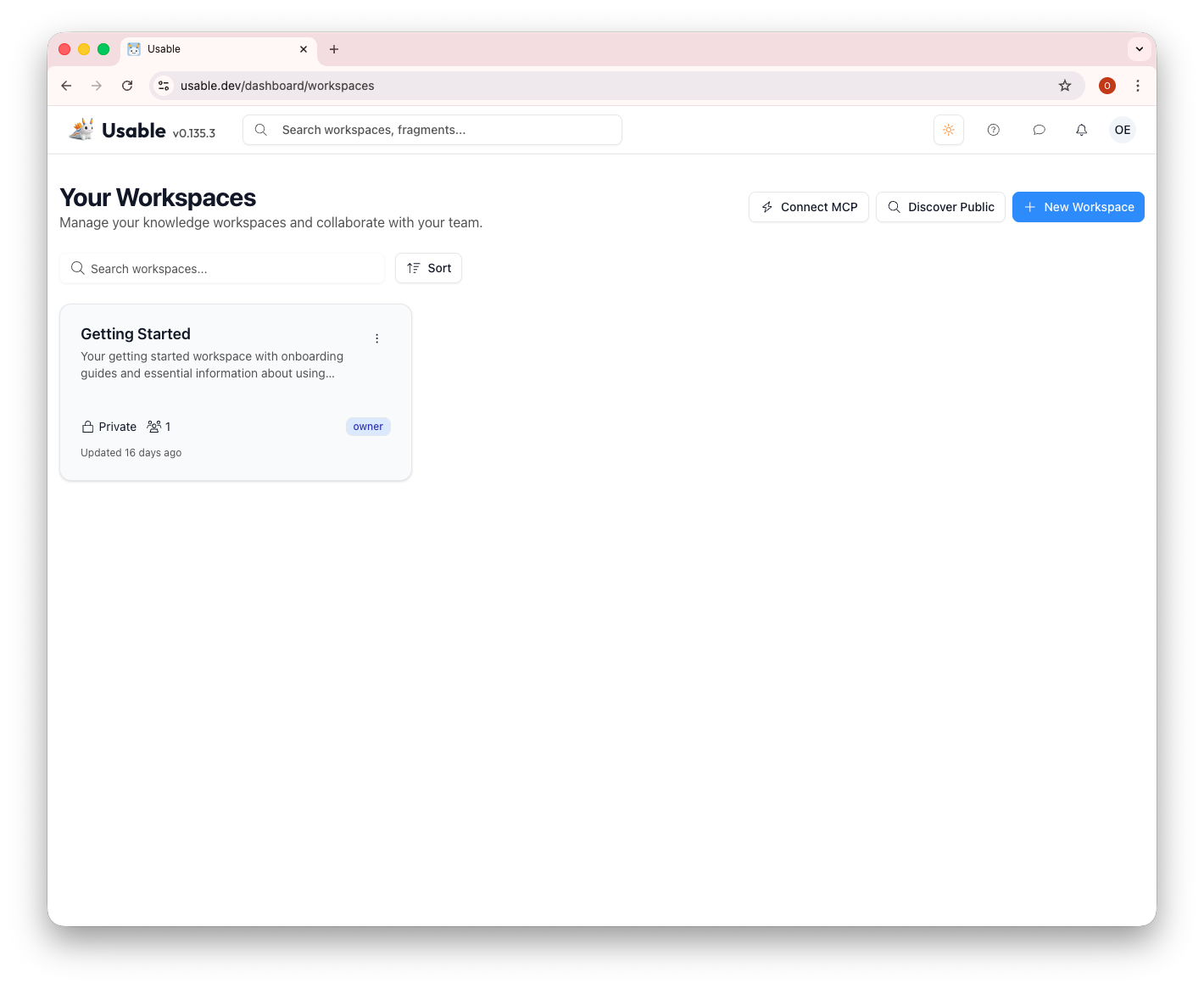
Your Workspaces Dashboard: The clean interface shows your existing workspaces at a glance. Notice the key actions: Connect MCP to link your IDE, Discover Public to find shared workspaces, and + New Workspace to create your own. Every new user starts with a "Getting Started" workspace.
Each workspace organizes your knowledge into different fragment types. The "Getting Started" workspace comes pre-populated with helpful onboarding guides.
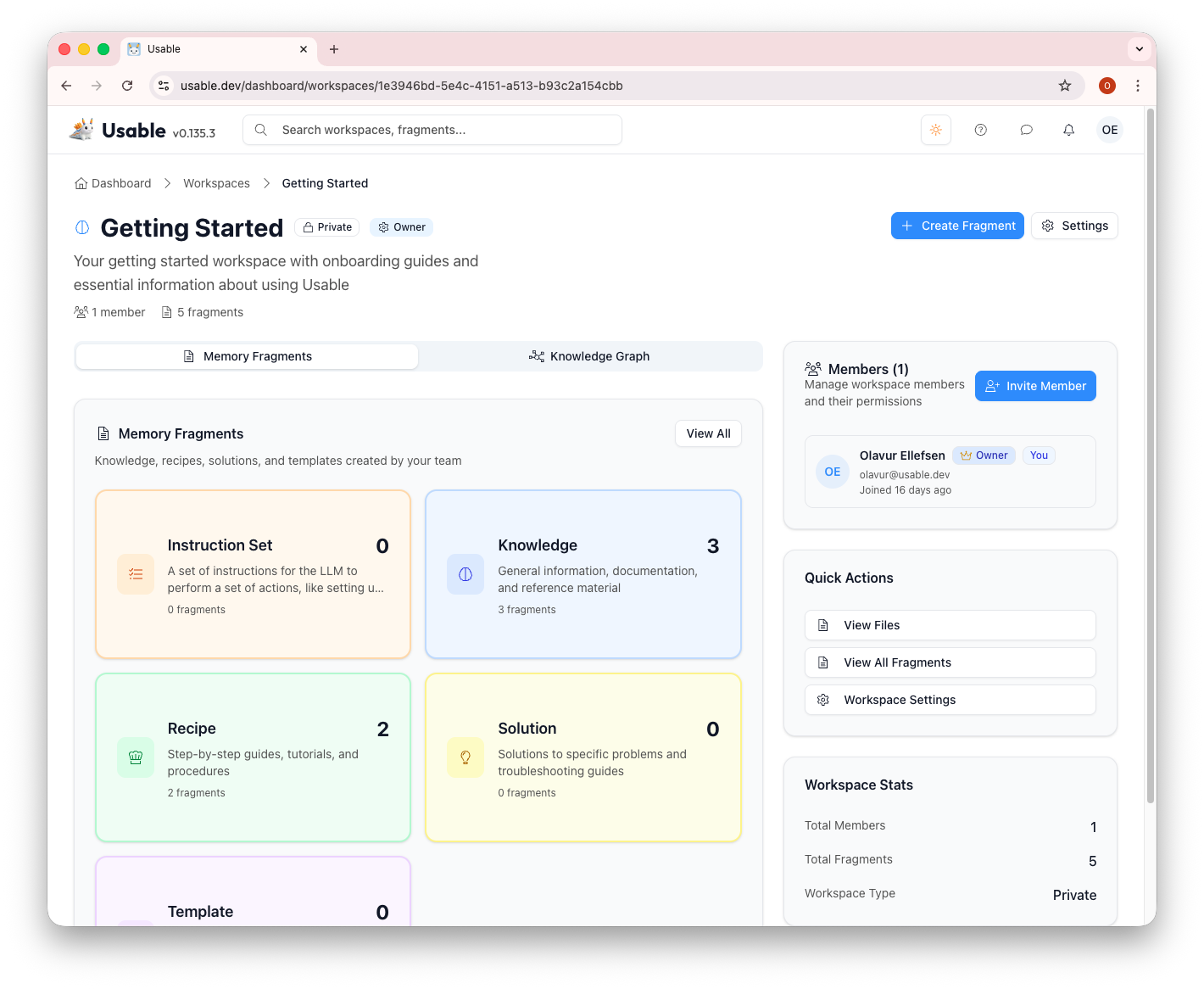
Workspace Overview: This is the heart of Usable. You can see your Memory Fragments organized by type: Instruction Set, Knowledge, Recipe, Solution, and Template. The sidebar shows workspace members, quick actions, and statistics. Each fragment type is color-coded for easy identification.
Memory fragments are the building blocks of Usable. They store your knowledge in a structured, searchable format that approved AI tools can access.
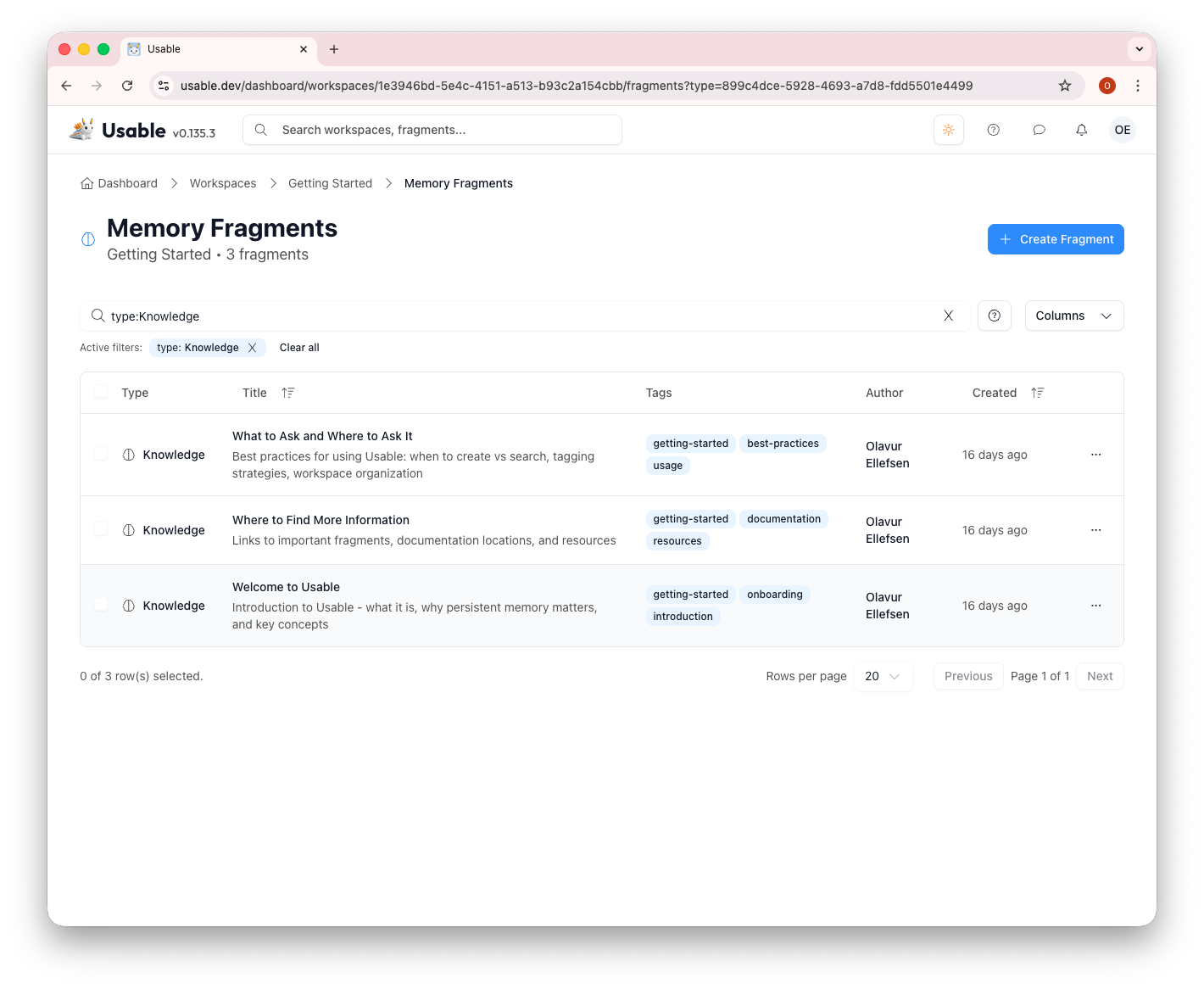
Memory Fragments List: Browse all your fragments with filtering capabilities. Each fragment shows its type, title, description, tags, author, and creation date. The filter bar lets you narrow down by type, and you can search across all content.
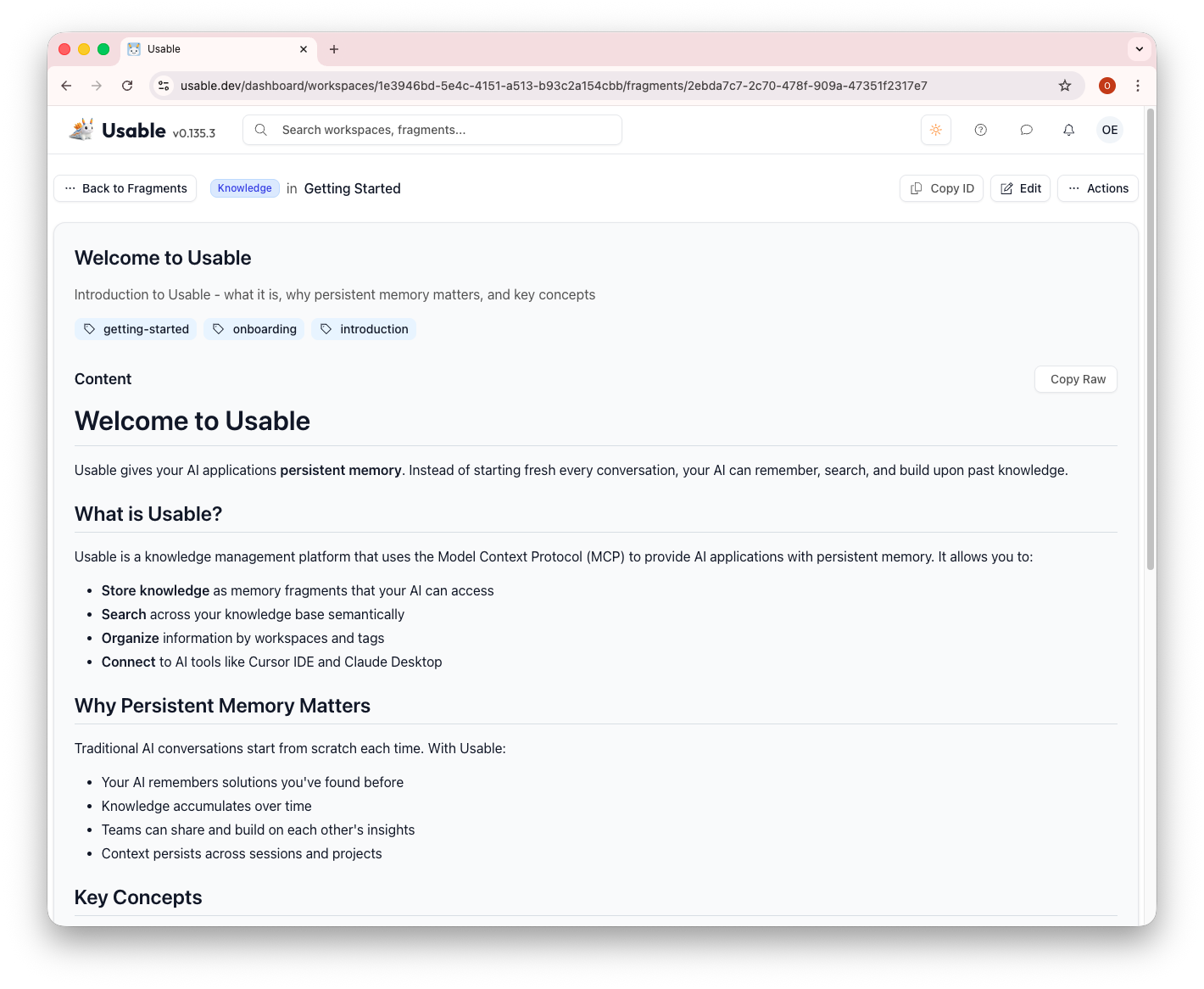
Fragment Detail: Dive deep into any fragment. This "Welcome to Usable" knowledge fragment explains what Usable is, why persistent memory matters, and key concepts. Notice the tags for organization, the "Copy Raw" button for easy sharing, and the rich markdown content.
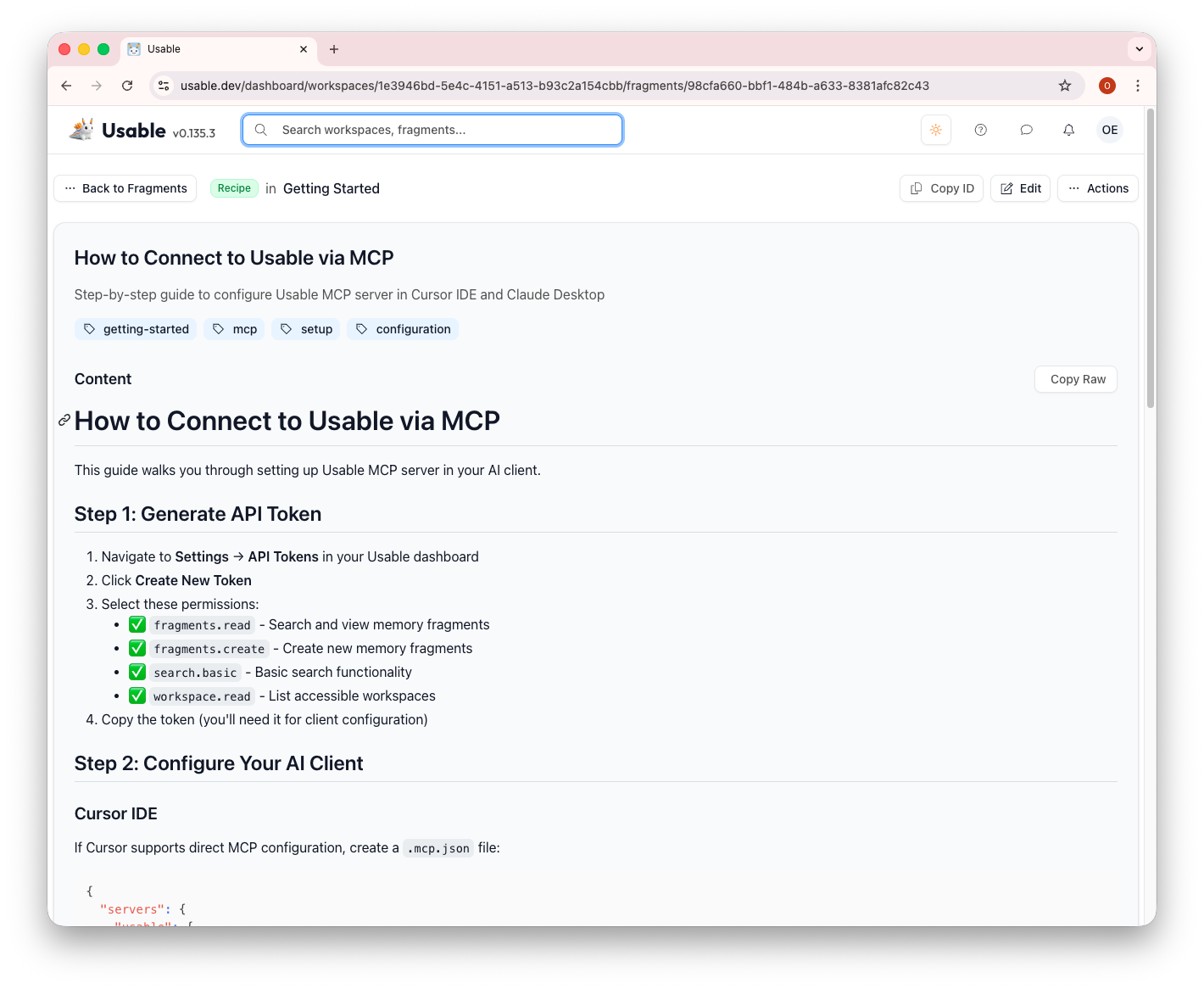
Recipe Fragment: Recipes provide step-by-step guides. This one walks you through connecting to Usable via MCP, including generating API tokens, configuring your IDE, and setting up permissions. Recipes are perfect for onboarding and standardizing processes.
Usable search helps you find relevant knowledge from the UI, Usable Chat, MCP tools, or API workflows.
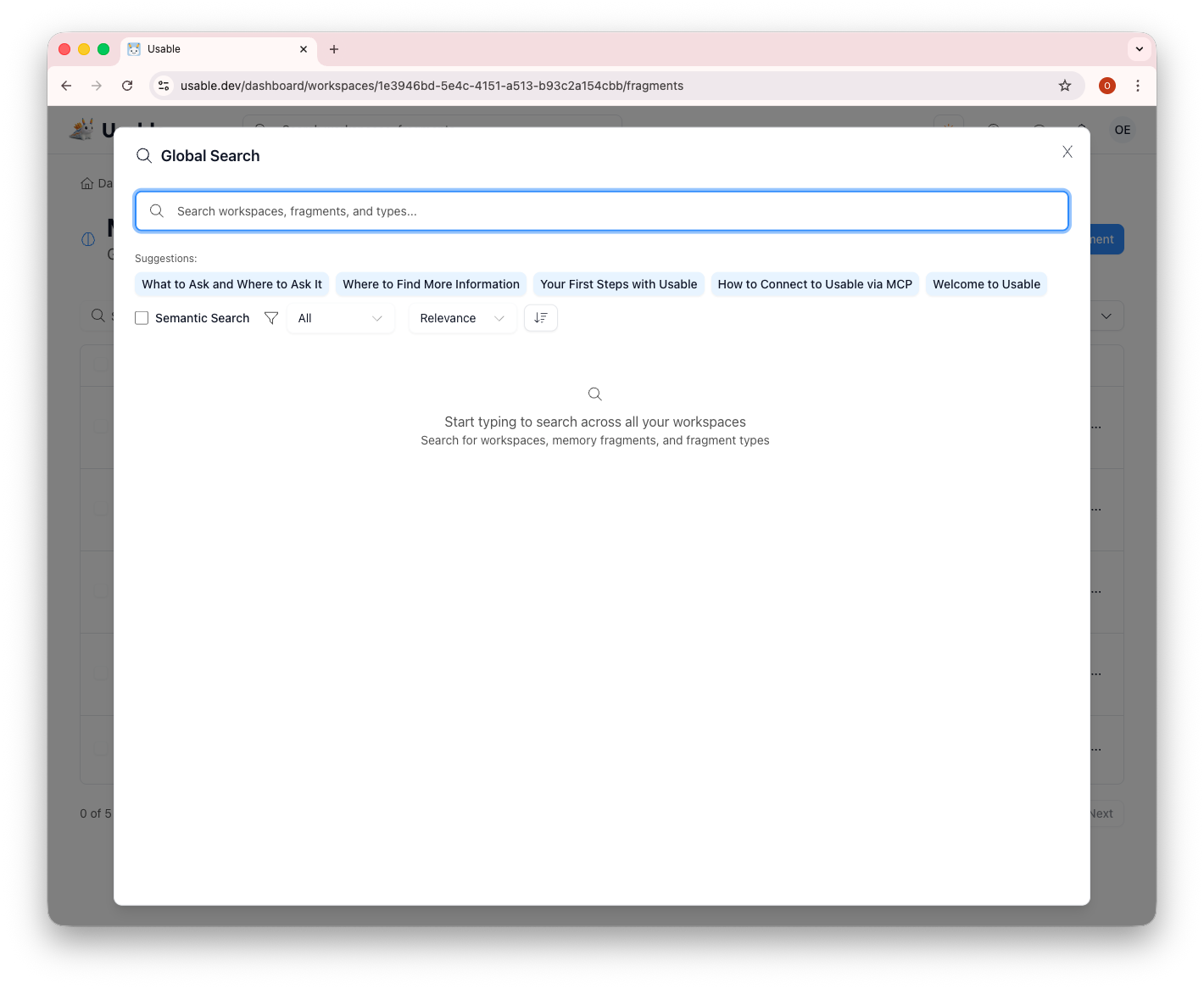
Global Search: Press the search bar to open the Global Search dialog. It shows suggested fragments based on your activity and supports semantic search to find content by meaning, not just keywords.
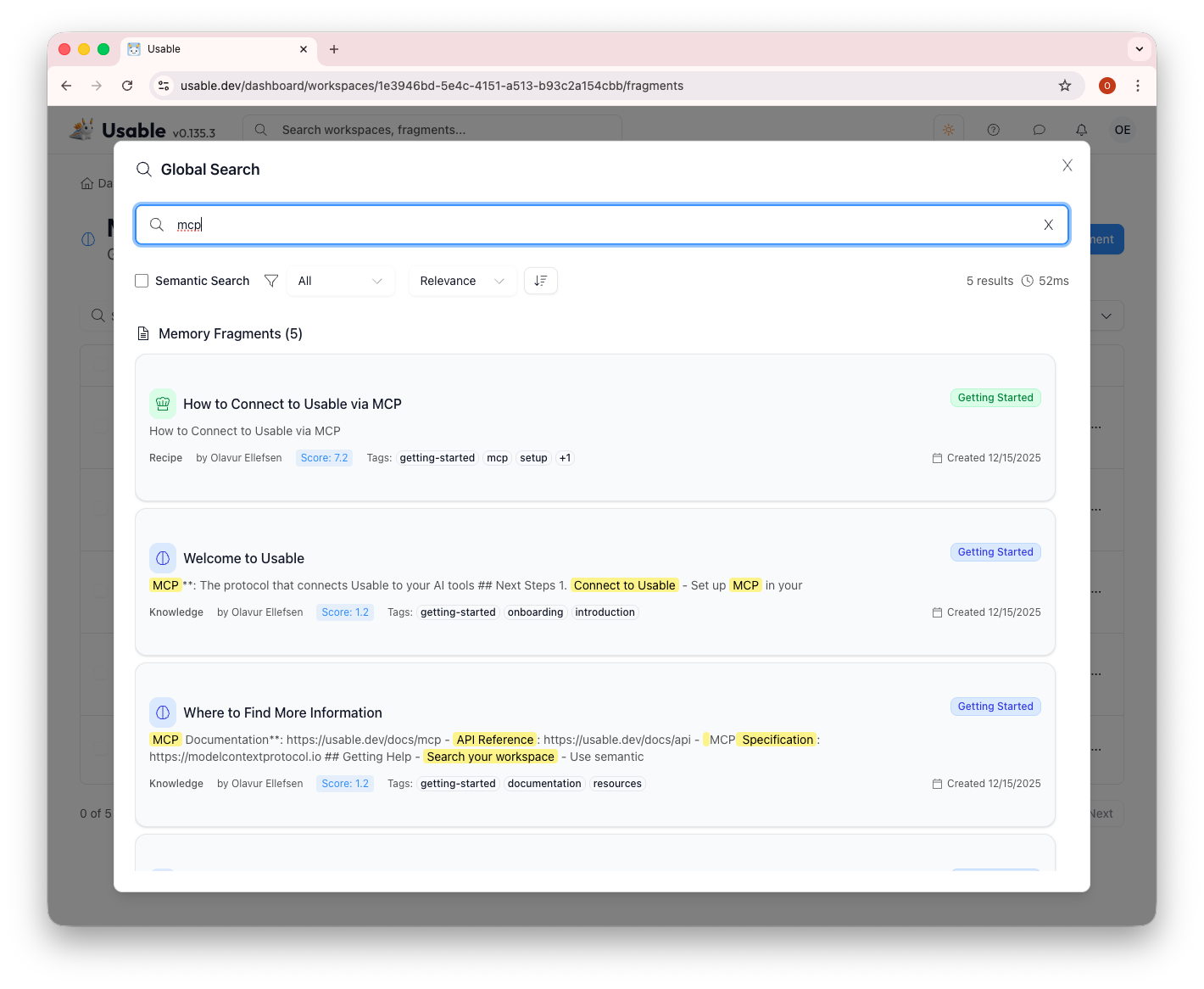
Search Results: Searching for "mcp" returns 5 results in 52ms. Each result shows the fragment type, title, matching content preview with highlighted keywords, relevance score, tags, and the workspace it belongs to.
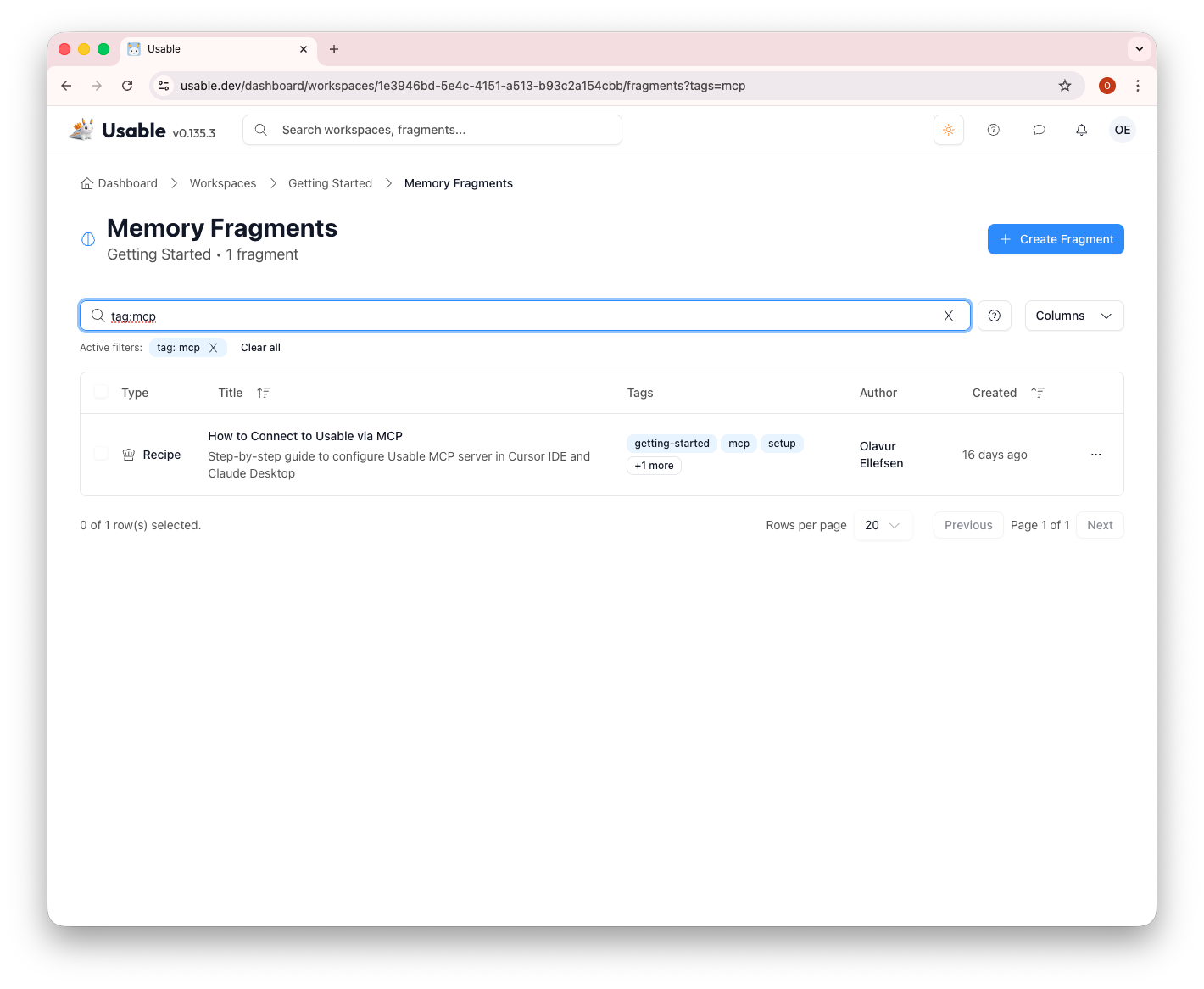
Tag Filtering: Quickly filter fragments by tag. Here we've filtered by "tag:mcp" to see only MCP-related content. Tags help organize your knowledge and make discovery effortless.
Adding new knowledge to Usable is simple. You can create fragments from scratch with AI assistance or import from PDFs.
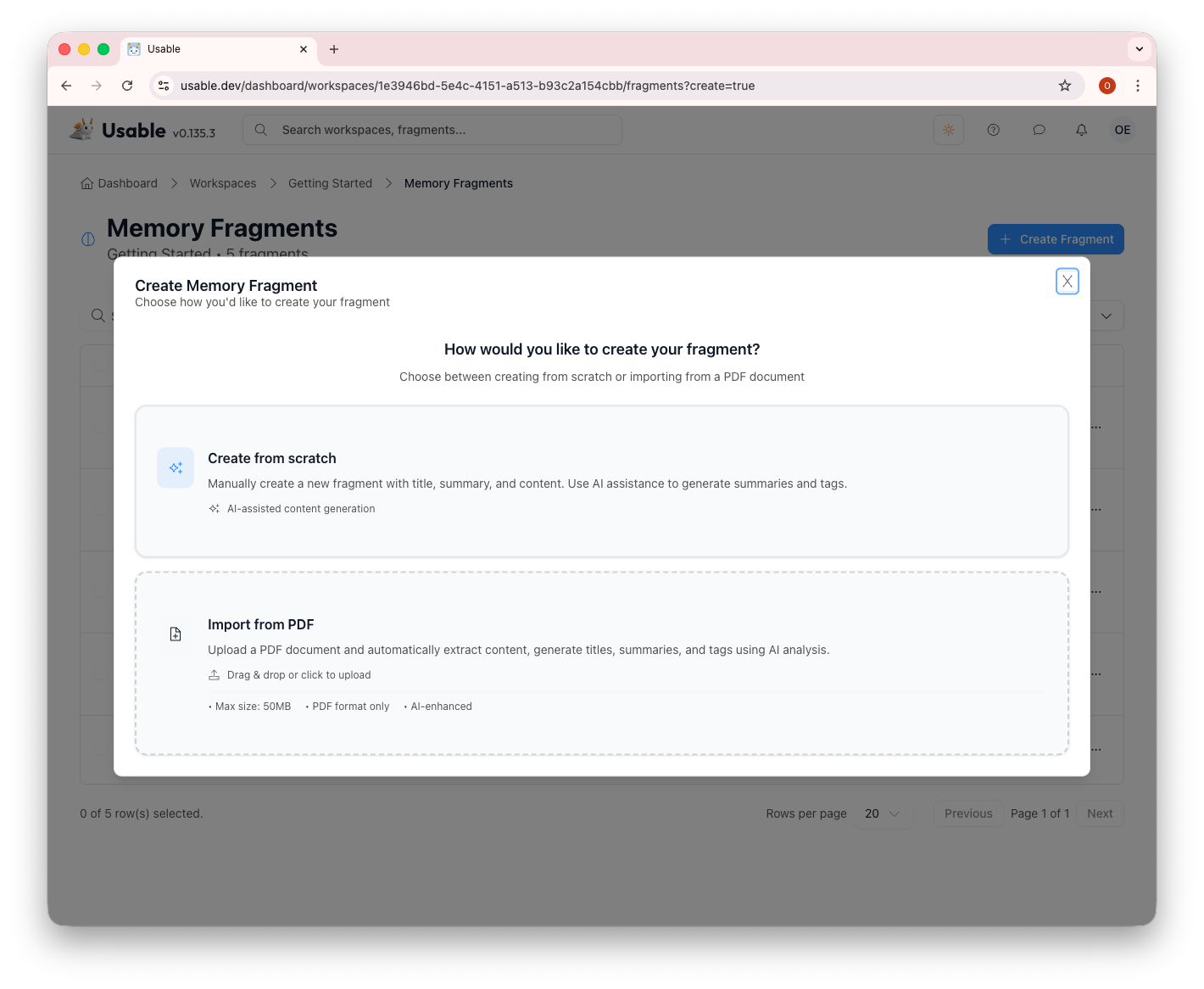
Create Fragment Options: Choose how to create your fragment. Create from scratch gives you full control with AI-assisted content generation, while Import from PDF automatically extracts content, titles, summaries, and tags using AI analysis.
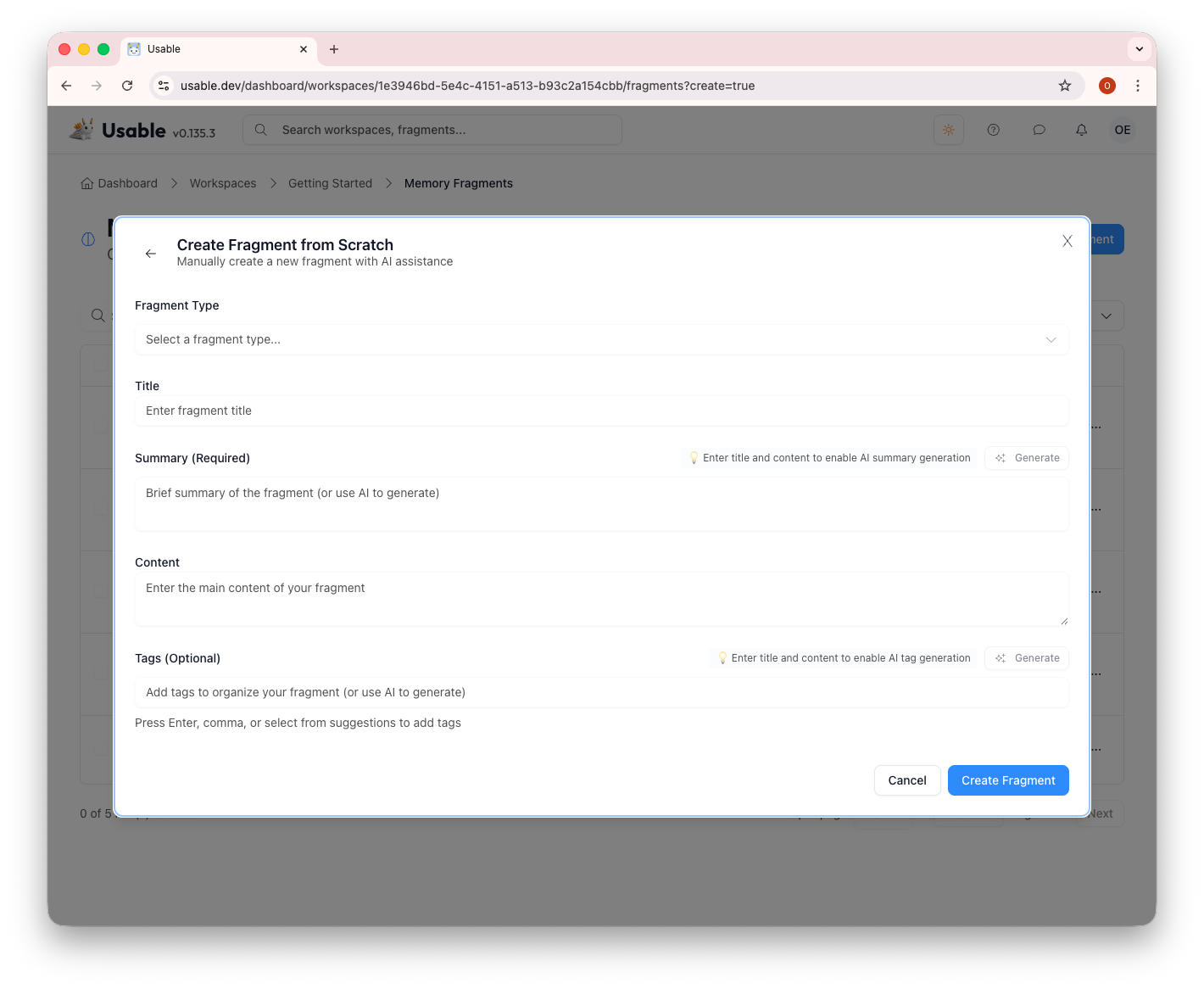
Fragment Editor: The creation form includes fragment type selection, title, summary (with AI generation), content area, and tags. The AI can generate summaries and tags automatically once you've added title and content.
Create workspaces to organize knowledge by project, team, or domain. Each workspace can be private or public.
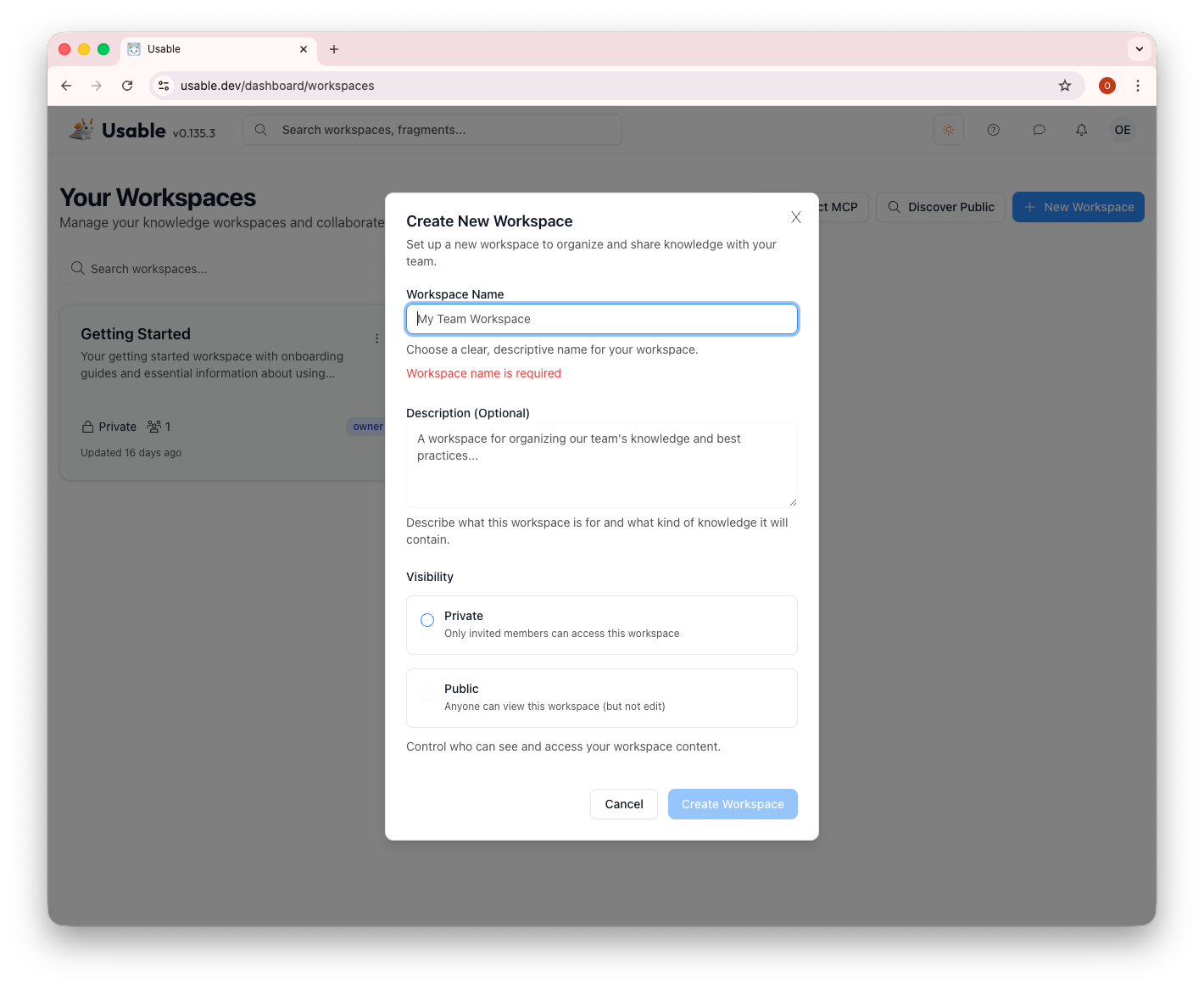
New Workspace Dialog: Enter a name, description, and choose visibility. Private workspaces are only accessible to invited members, while public workspaces can be discovered and subscribed to by anyone.
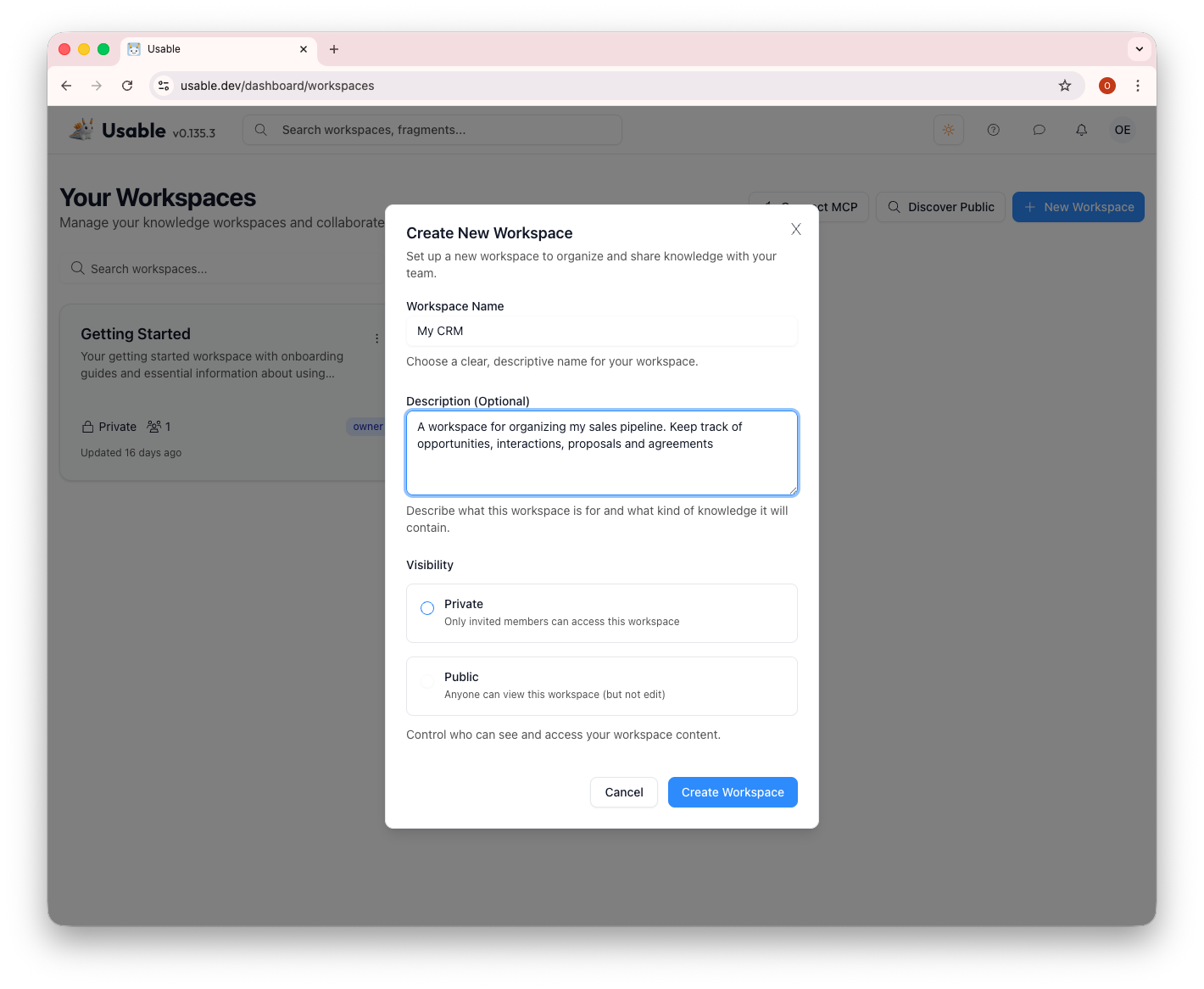
Example: Creating "My CRM": Here we're creating a workspace for organizing a sales pipeline: opportunities, interactions, proposals, and agreements. This demonstrates how Usable adapts to different use cases.
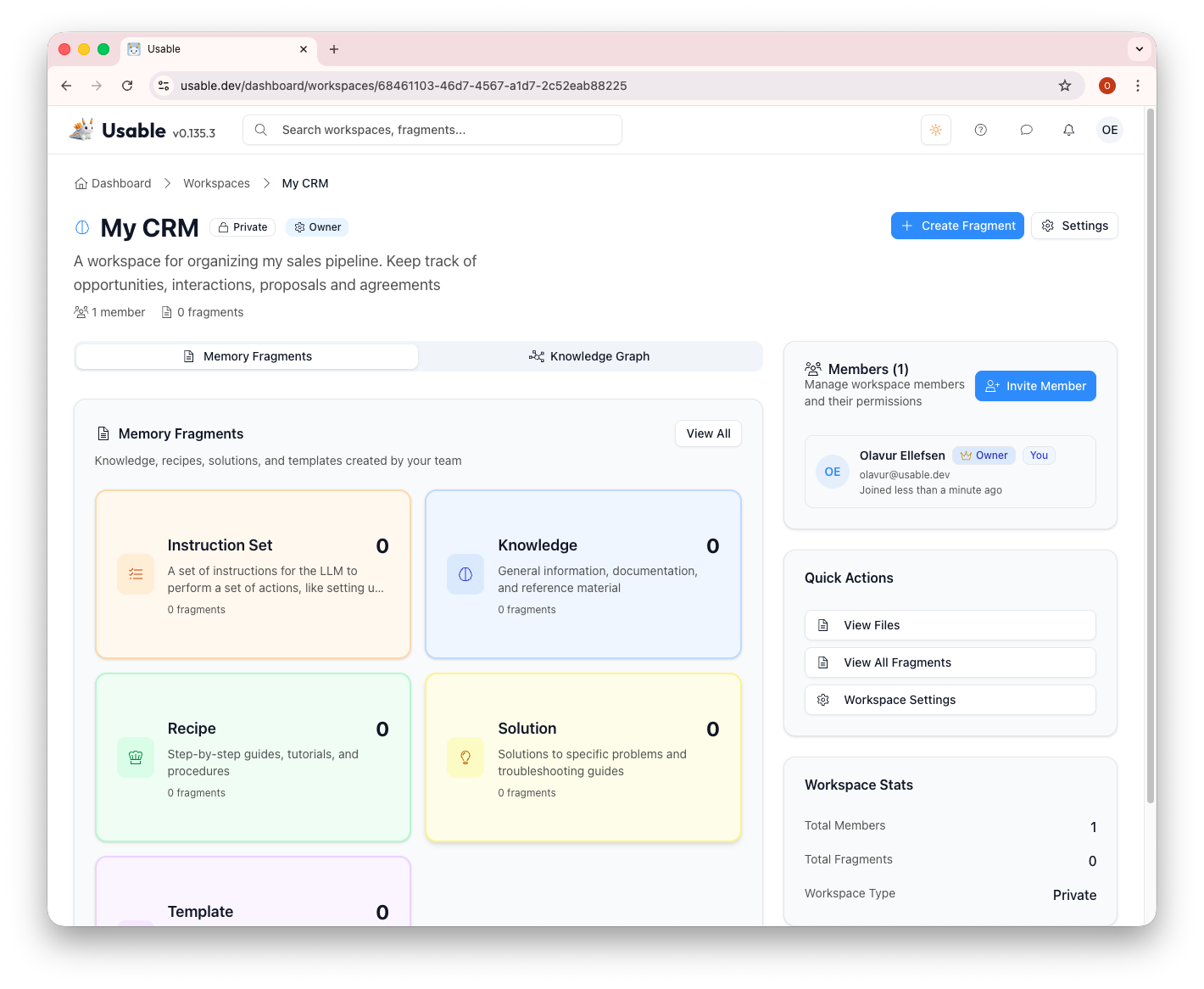
Workspace Created: The new "My CRM" workspace is ready. It comes with default fragment types, and you can immediately start creating content, inviting members, or adjusting settings.
Usable offers powerful configuration options including custom fragment types, webhooks, AI graph features, and search optimization.
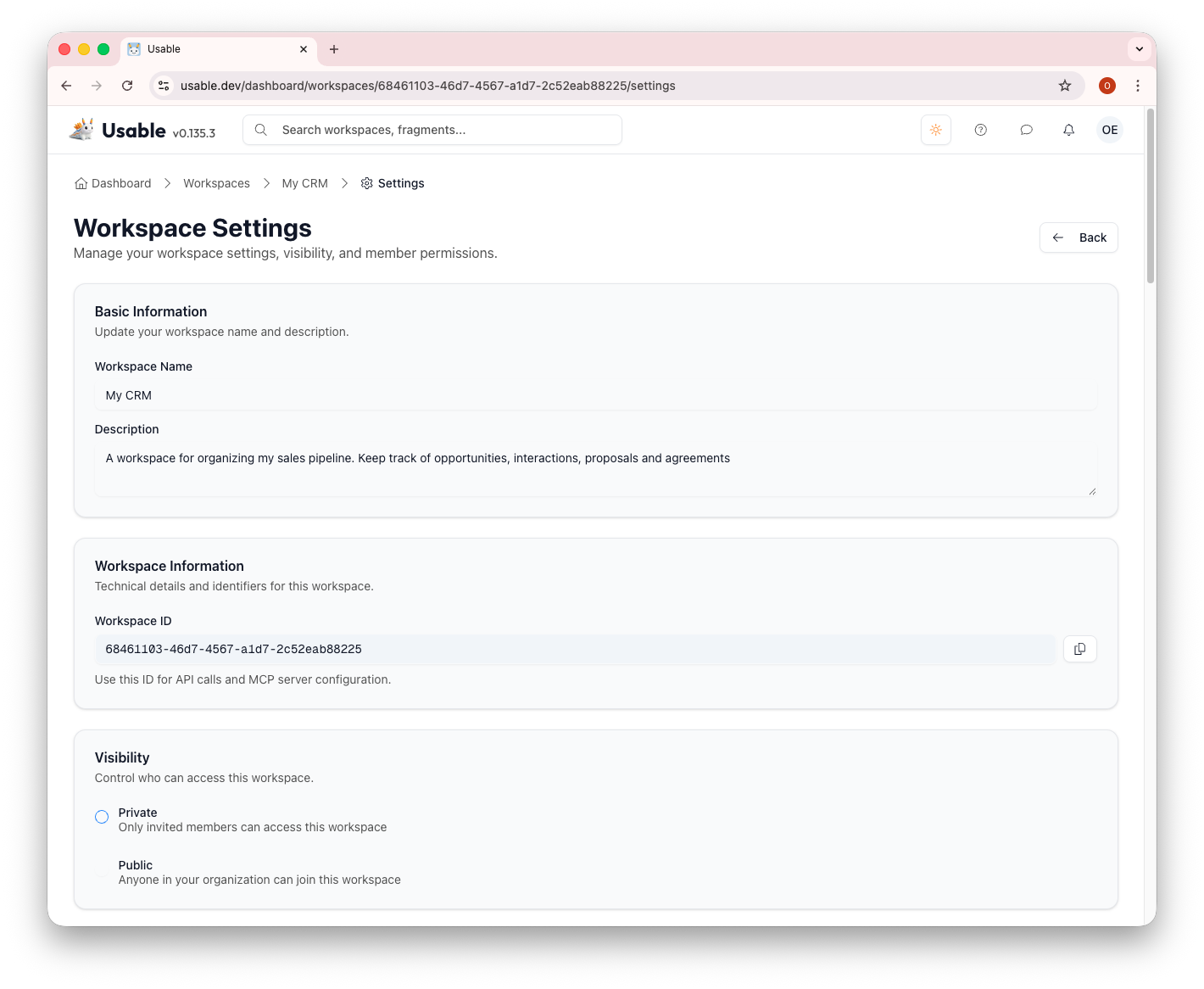
Workspace Settings: Manage basic information, workspace ID (for API/MCP configuration), and visibility. The settings page gives you complete control over your workspace.
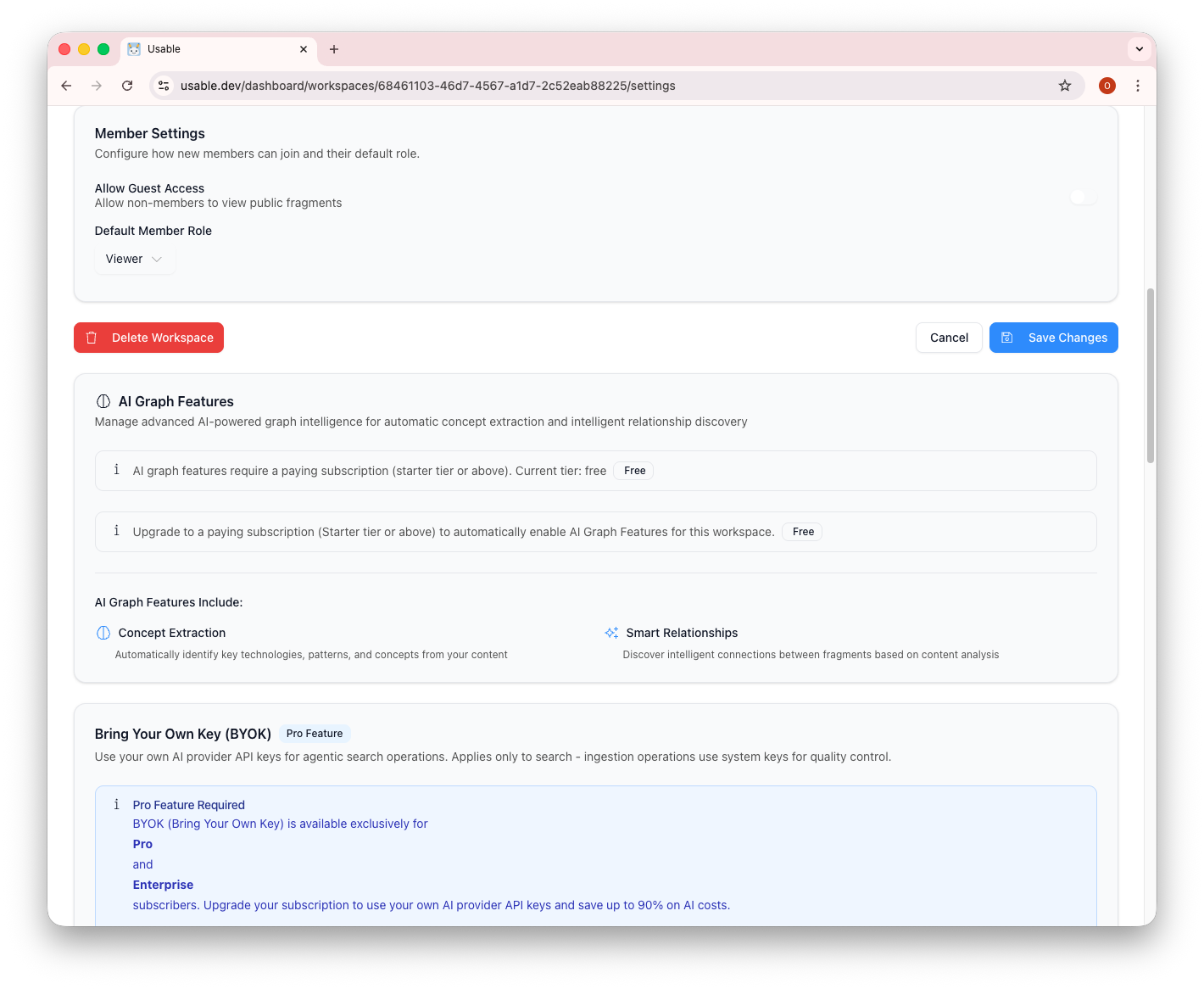
AI Graph Features: Advanced features include concept extraction and relationship discovery between fragments. The BYOK (Bring Your Own Key) feature lets Pro users use their own AI provider API keys.
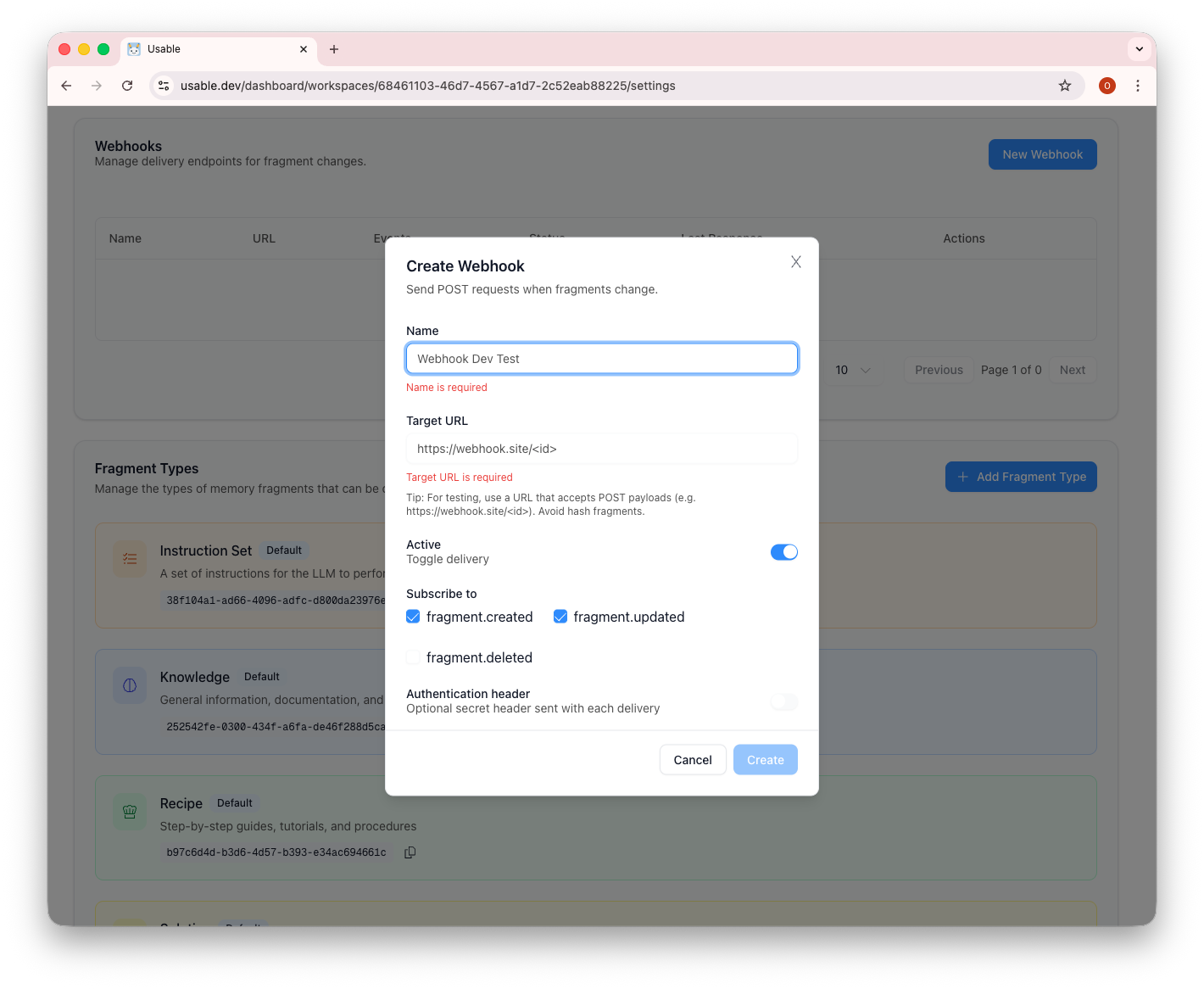
Webhooks: Set up webhooks to receive notifications when fragments are created, updated, or deleted. This enables powerful integrations with external systems.
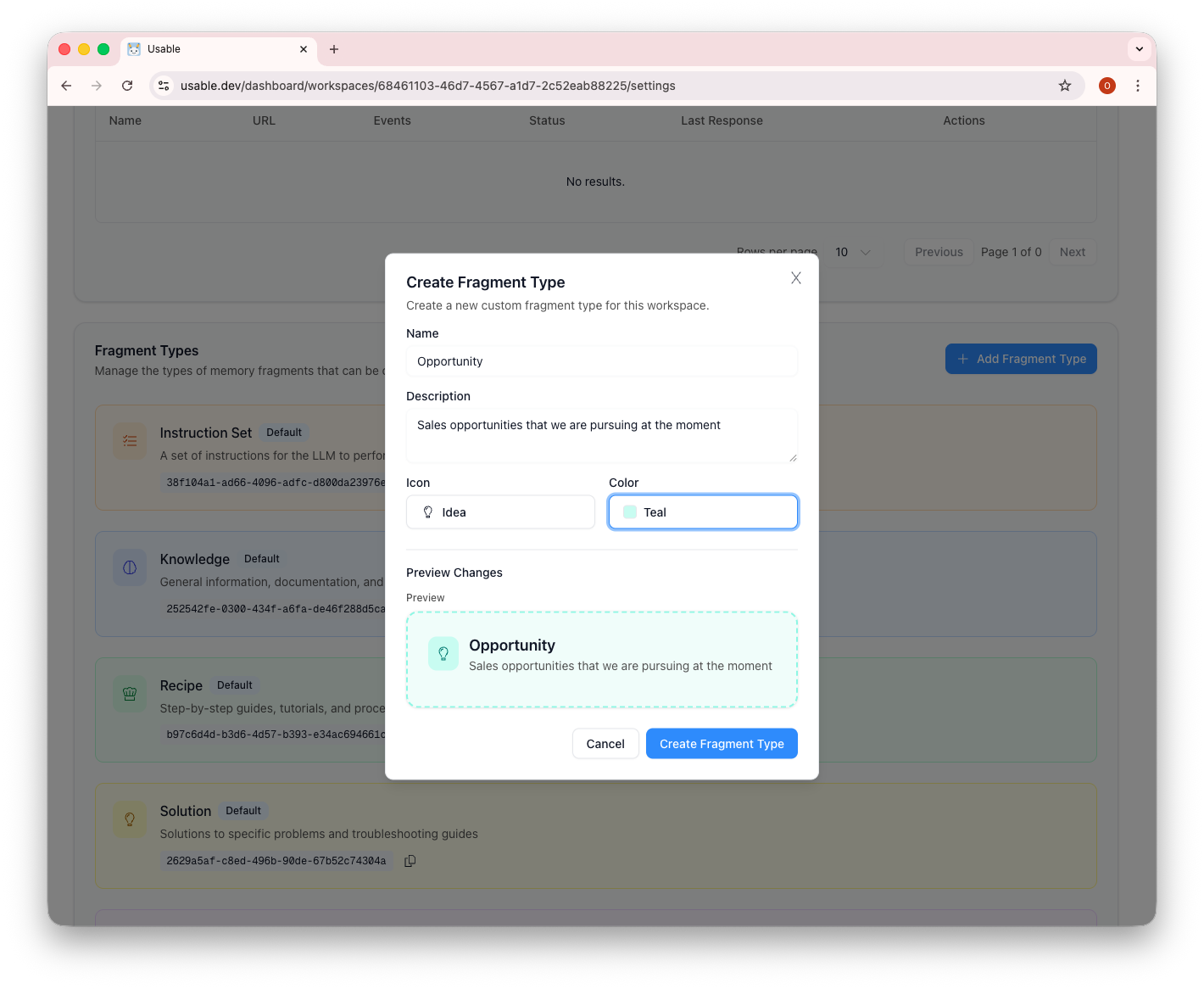
Custom Fragment Types: Create your own fragment types to match your workflow. Here we're creating an "Opportunity" type for tracking sales opportunities, with custom icon and color. This extensibility makes Usable adaptable to any domain.
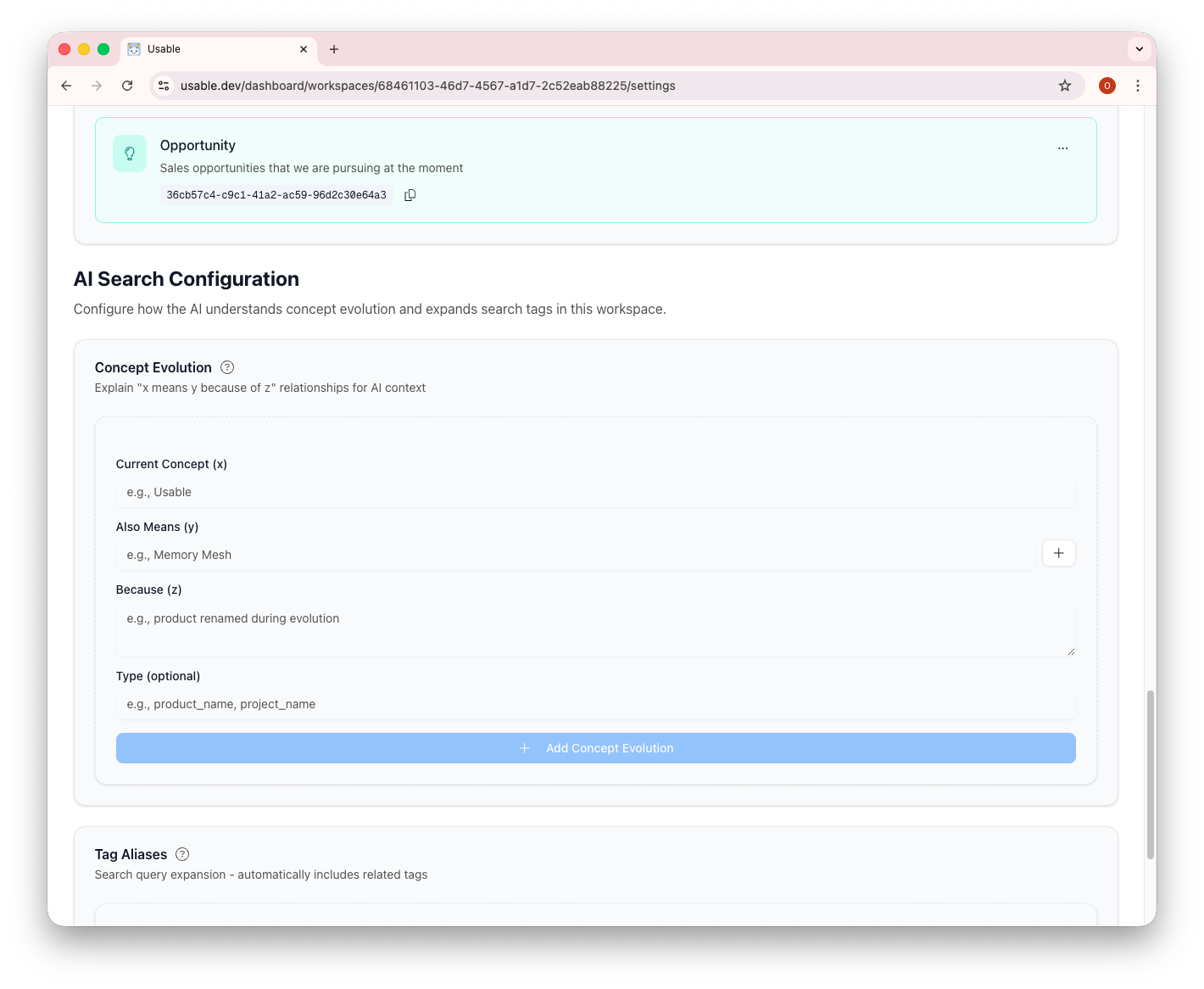
AI Search Configuration: Fine-tune how the AI understands your content with Concept Evolution (defining relationships like "Usable also means Memory Mesh") and Tag Aliases for automatic search expansion.
Usable Chat is an assistant that works from selected Usable workspaces. It can search approved memory, create fragments when allowed, and keep conversation context.
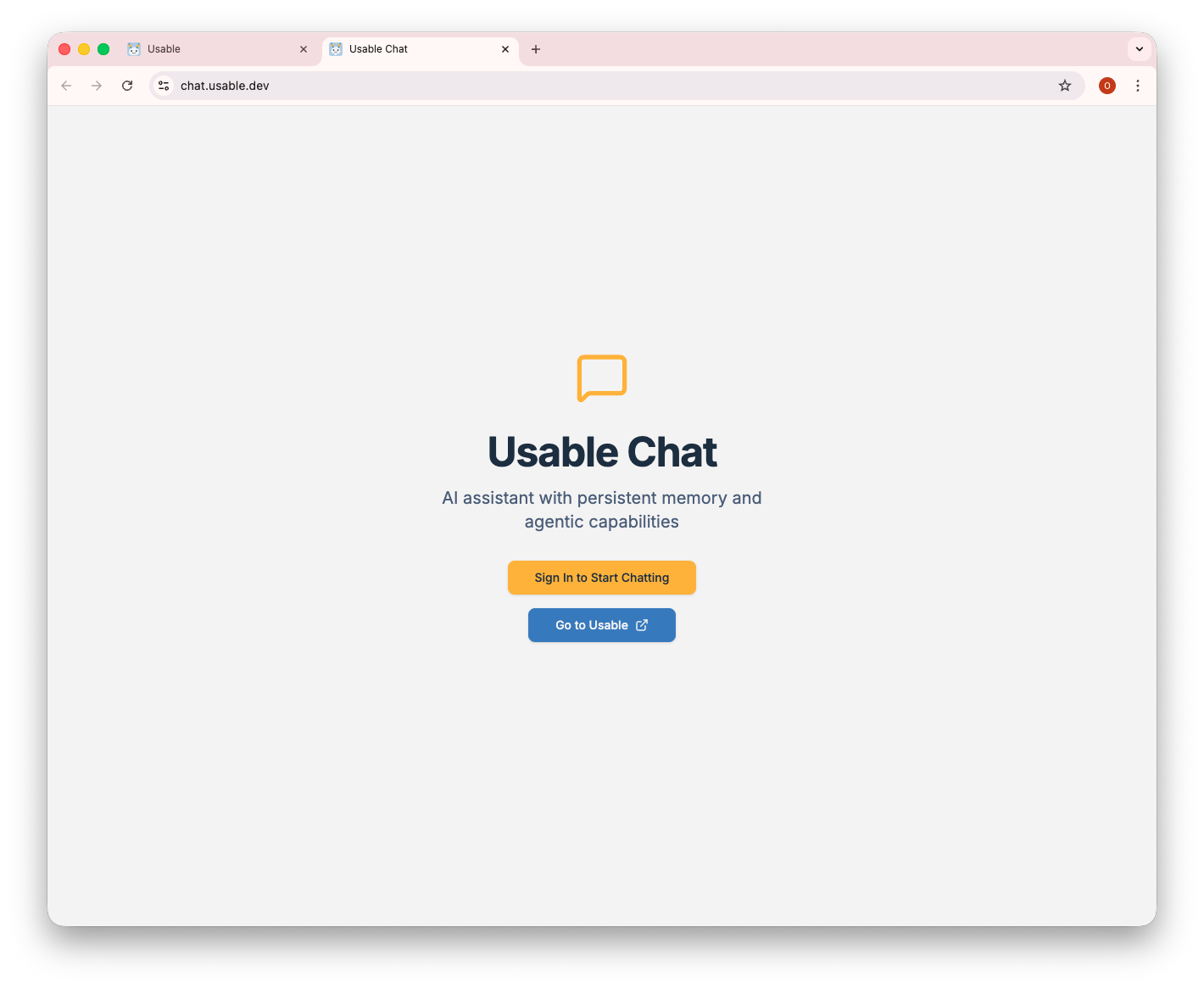
Usable Chat: Access at chat.usable.dev. It is an assistant connected to approved workspaces, conversation context, tool use, and secure SSO authentication.
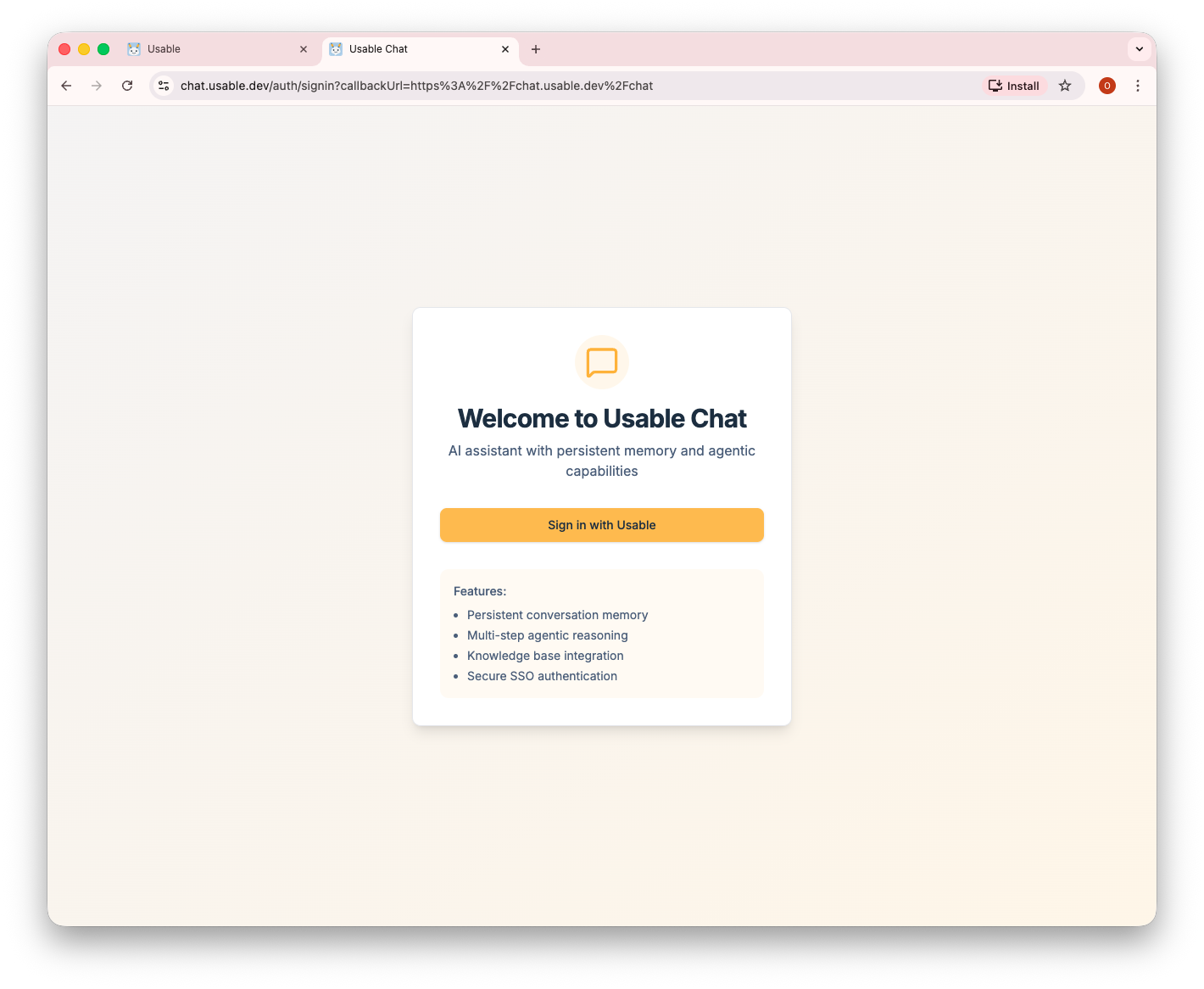
Key Features: Workspace-grounded answers, conversation context across sessions, controlled tool use, and role-based access with SSO.
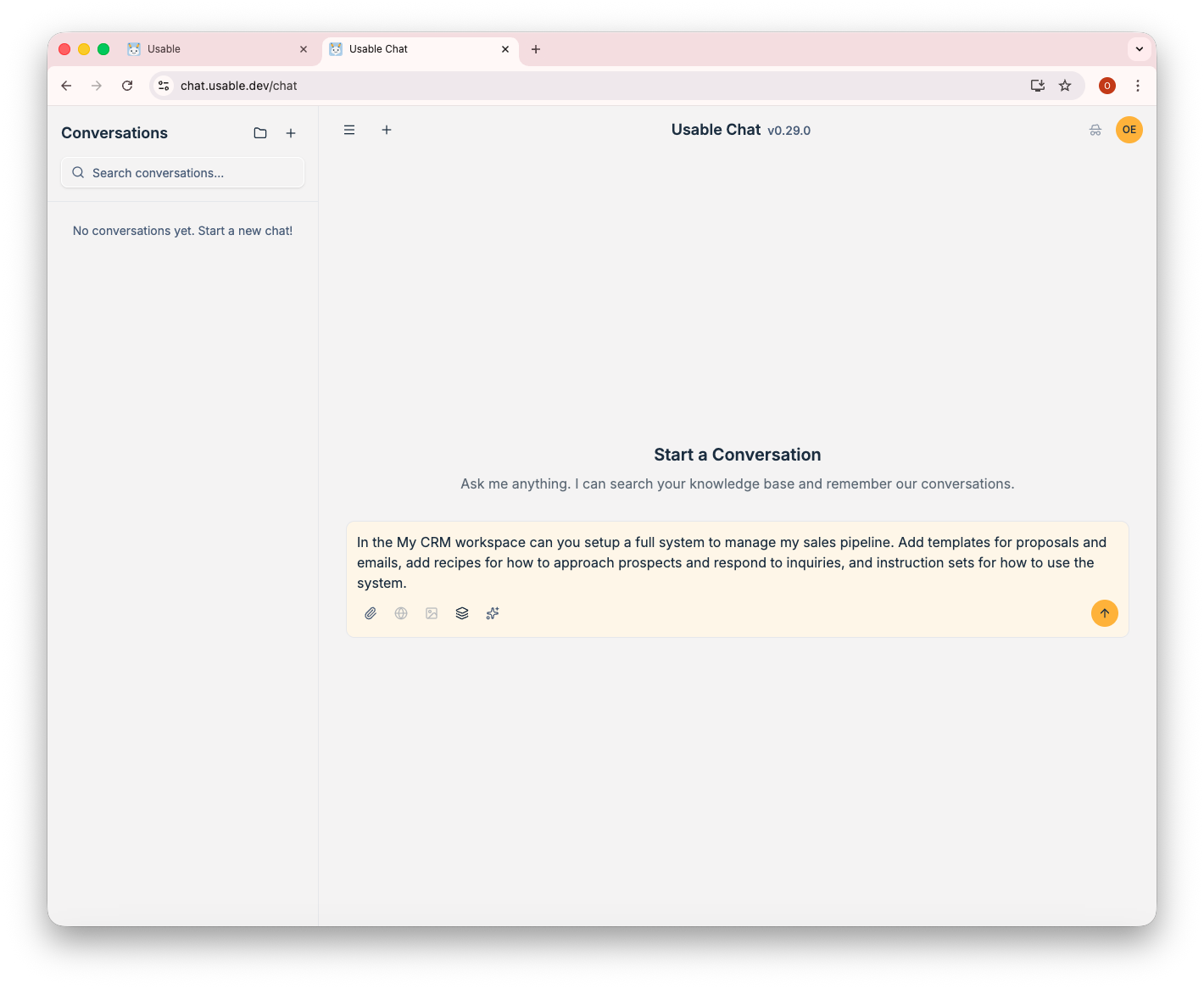
Starting a Conversation: Ask a question or request work. Here, the chat uses the "My CRM" workspace as context for a sales pipeline management request.
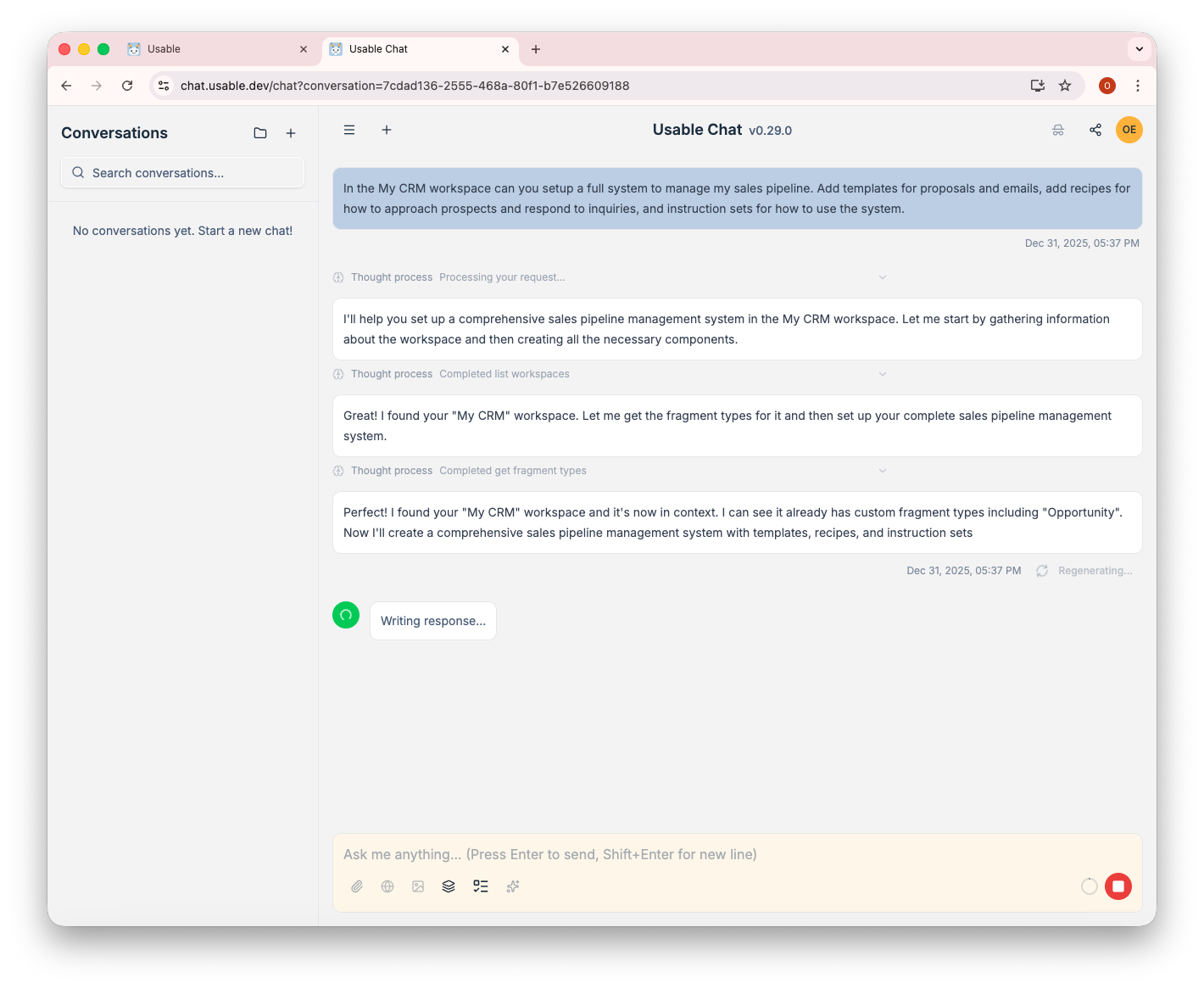
AI Thinking Process: Watch as the AI works through your request. It lists workspaces, gets fragment types, and then creates a comprehensive solution. The transparent thought process shows exactly what the AI is doing.
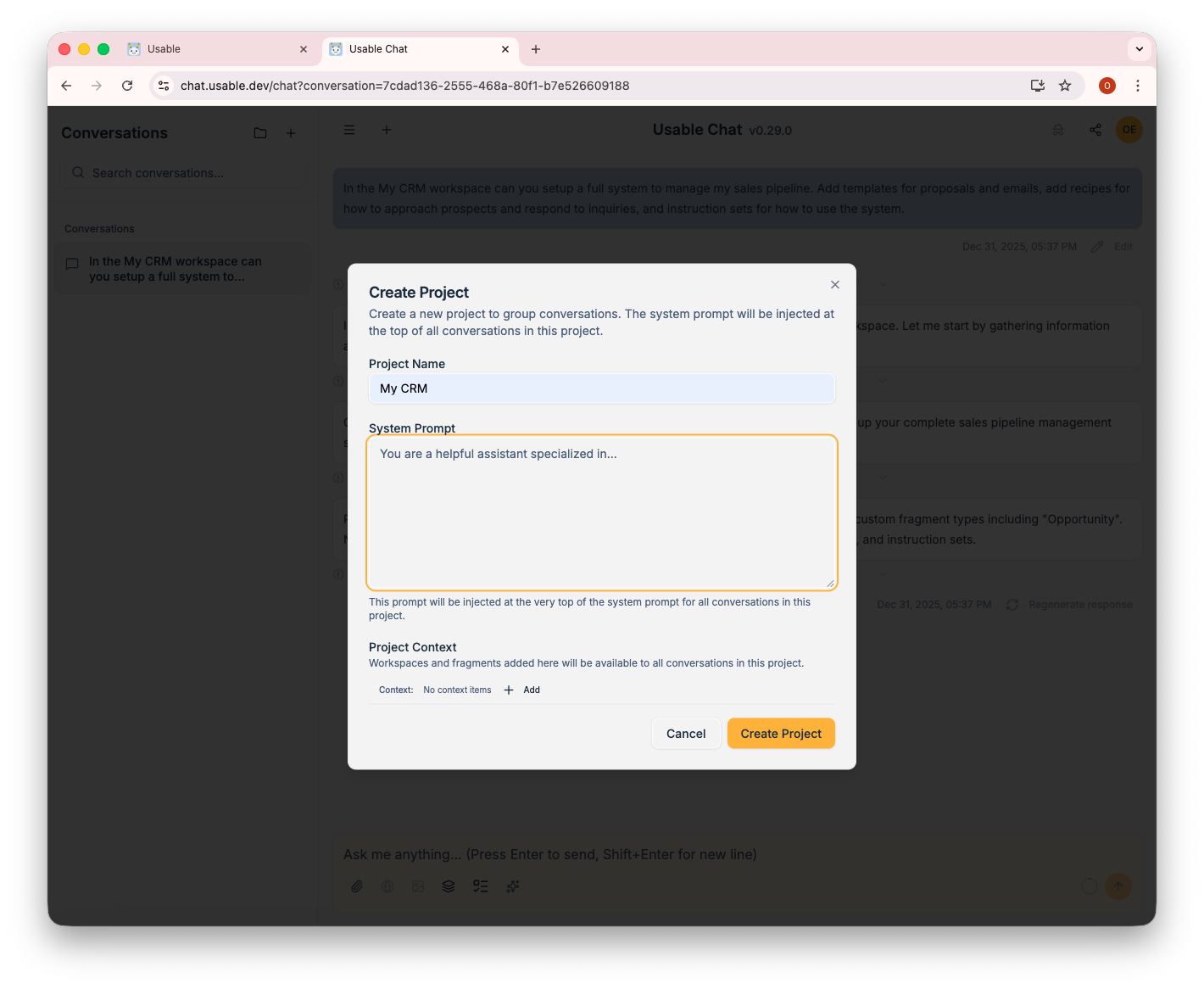
Projects: Group conversations into projects with custom system prompts. Each project can have its own context and personality, perfect for organizing work across different areas.
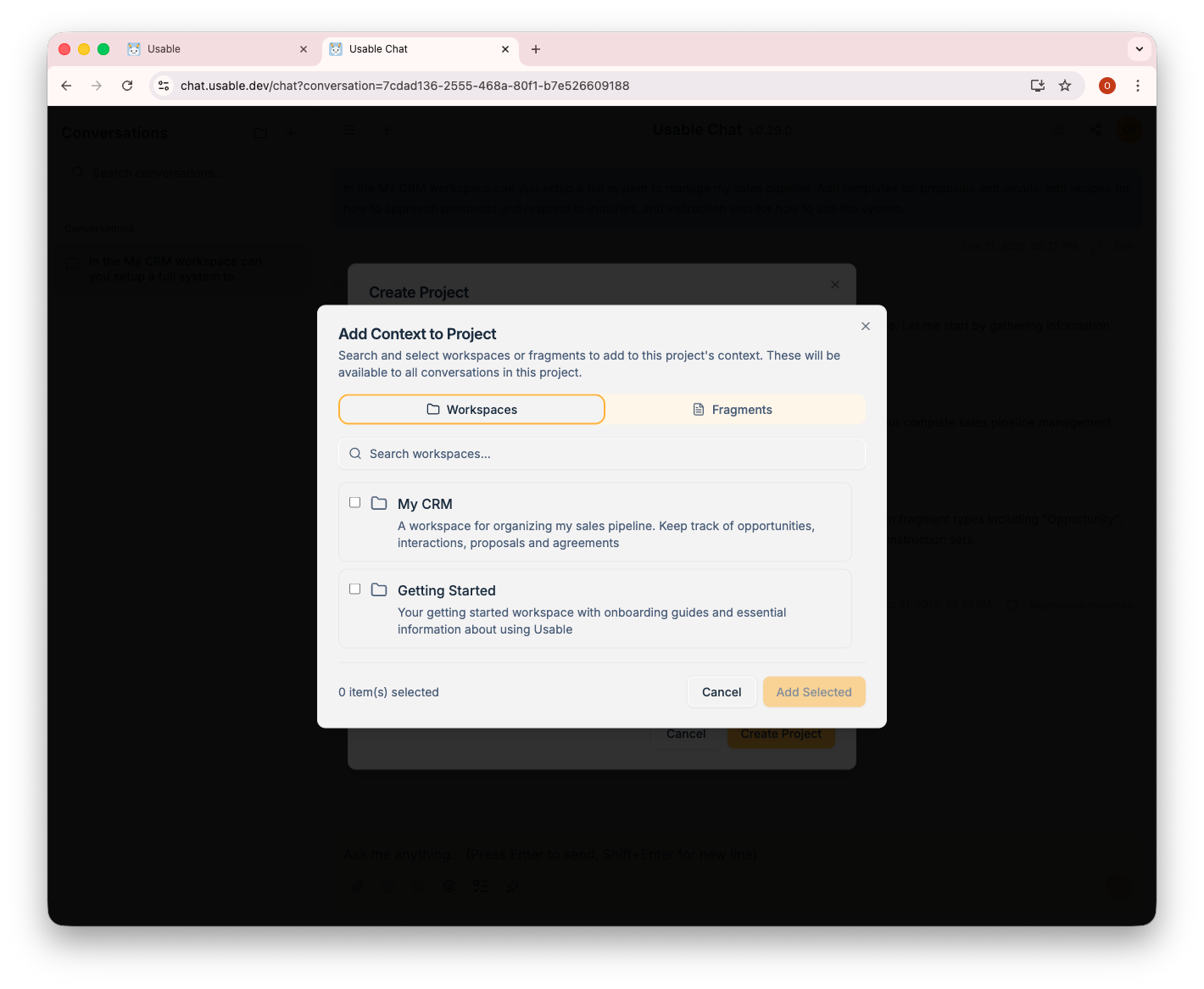
Project Context: Add workspaces or specific fragments to your project's context. These will be available to all conversations in the project, ensuring the AI always has the right knowledge.
Connect Usable to developer tools using the Model Context Protocol (MCP). Works with Cursor, Claude Code, VS Code, Cline, Windsurf, and more.
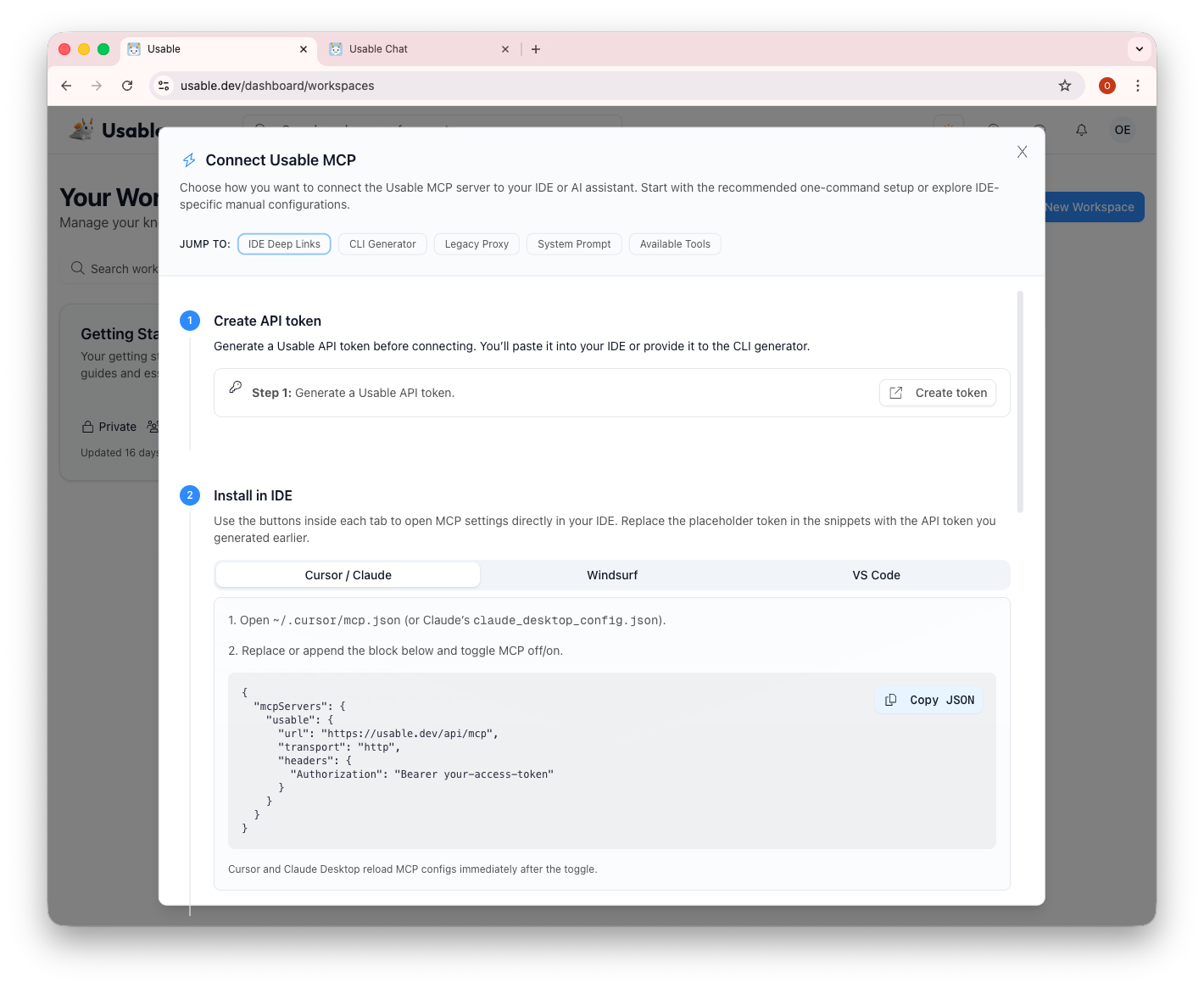
MCP Connection Guide: Step-by-step instructions for connecting your IDE. Generate an API token, then copy the configuration into your IDE's MCP settings. Supports Cursor, Claude Desktop, Windsurf, and VS Code with tabs for each.
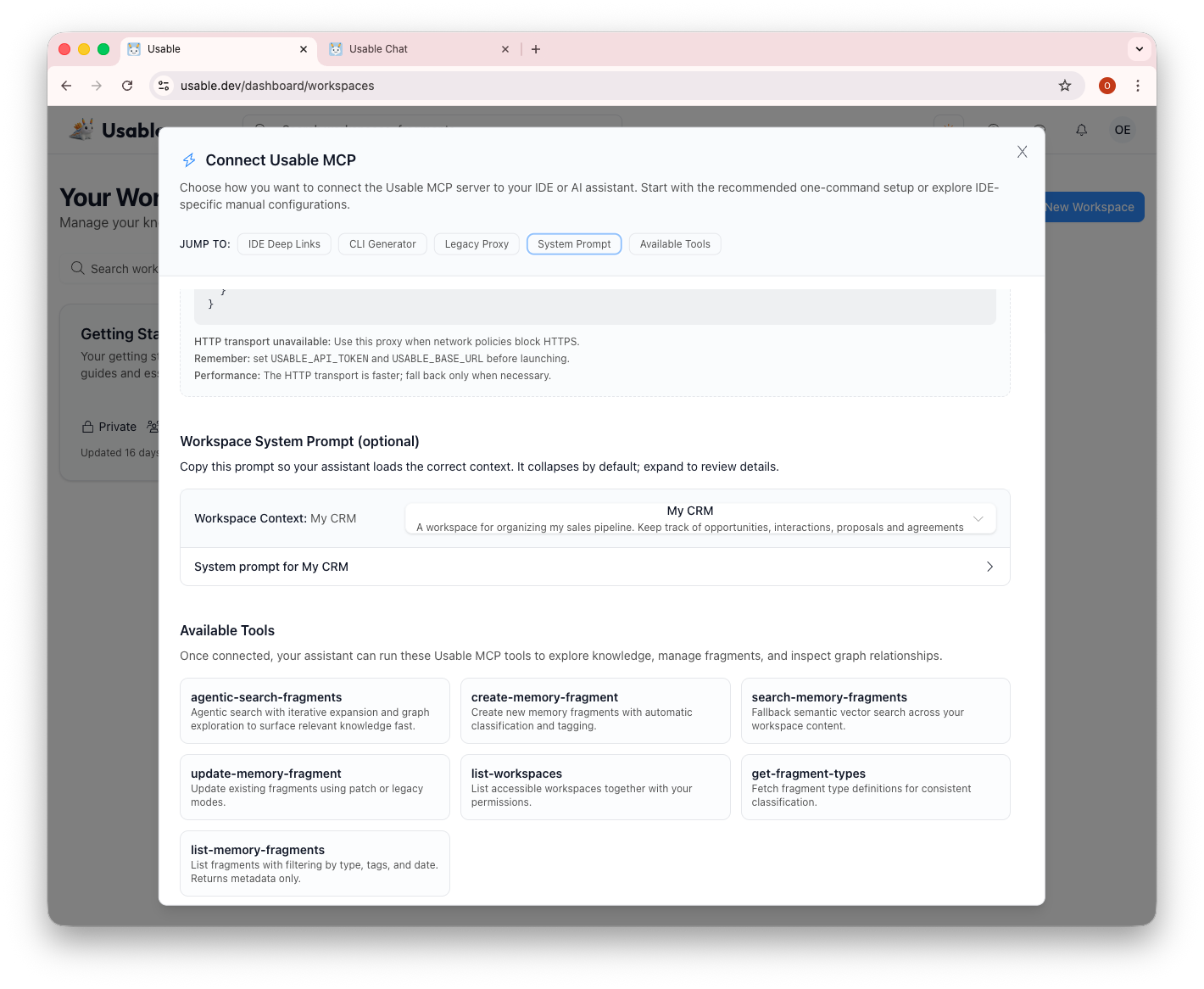
Available MCP Tools: Once connected, your AI assistant gains access to powerful tools: agentic-search-fragments, create-memory-fragment, search-memory-fragments, update-memory-fragment, list-workspaces, get-fragment-types, and list-memory-fragments.
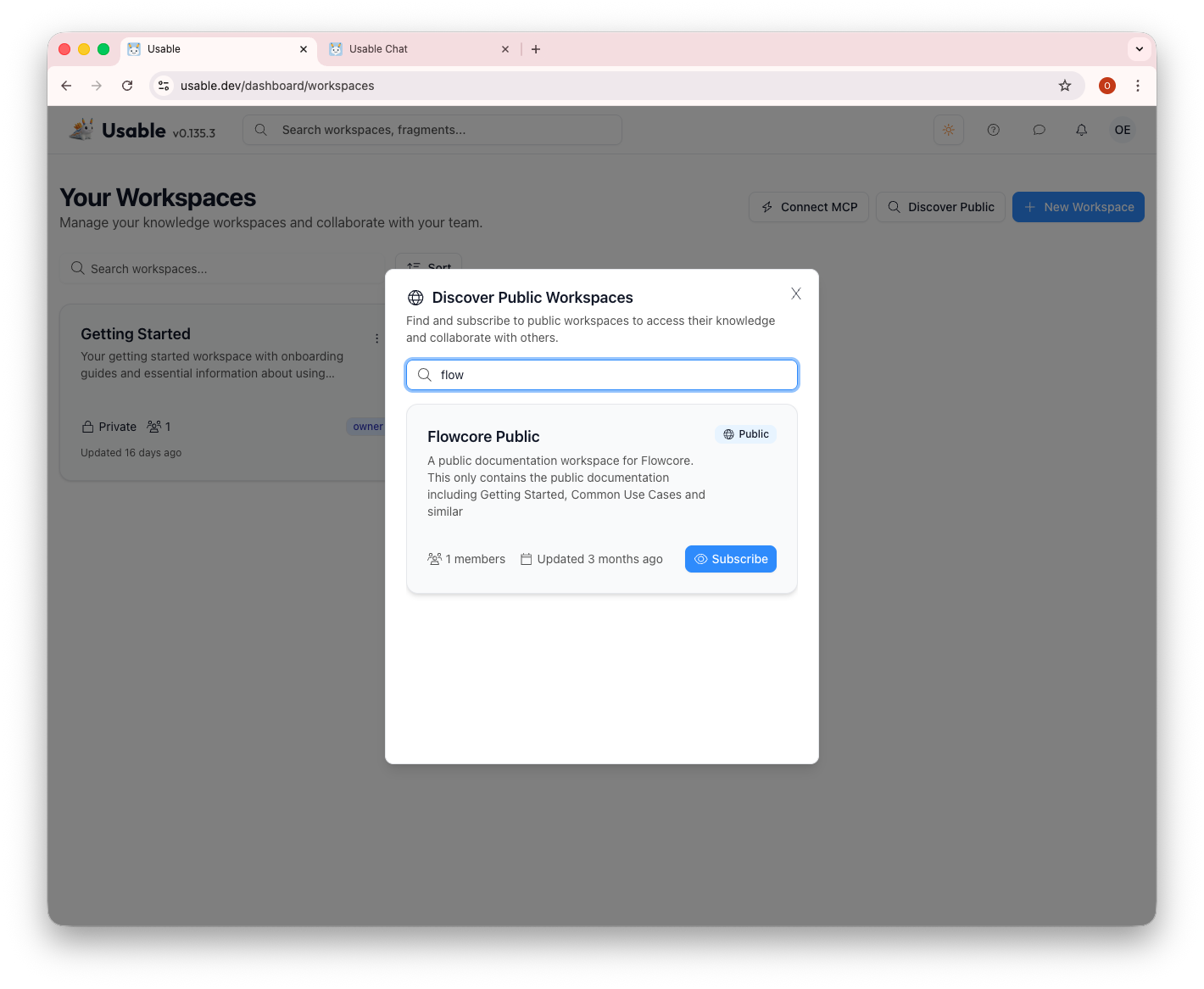
Discover Public Workspaces: Find and subscribe to public workspaces to access shared knowledge. Here we're searching for "flow" and finding the "Flowcore Public" workspace with documentation and use cases.
Manage your profile, API tokens, and subscription from the account settings.
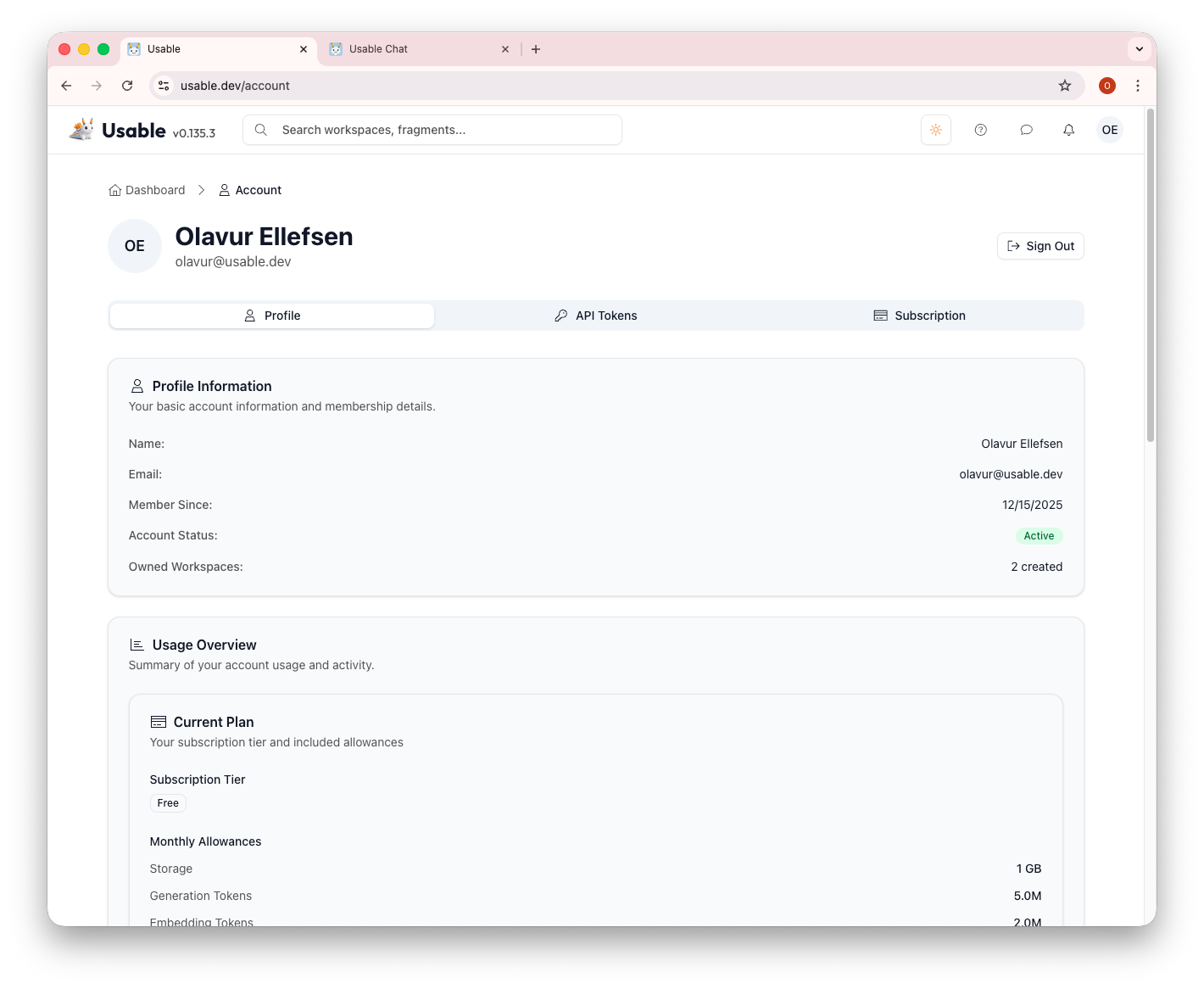
Profile: View your account information including name, email, membership date, account status, and owned workspaces. The usage overview shows your current plan and monthly allowances for storage, knowledge creation tokens, and knowledge search tokens.
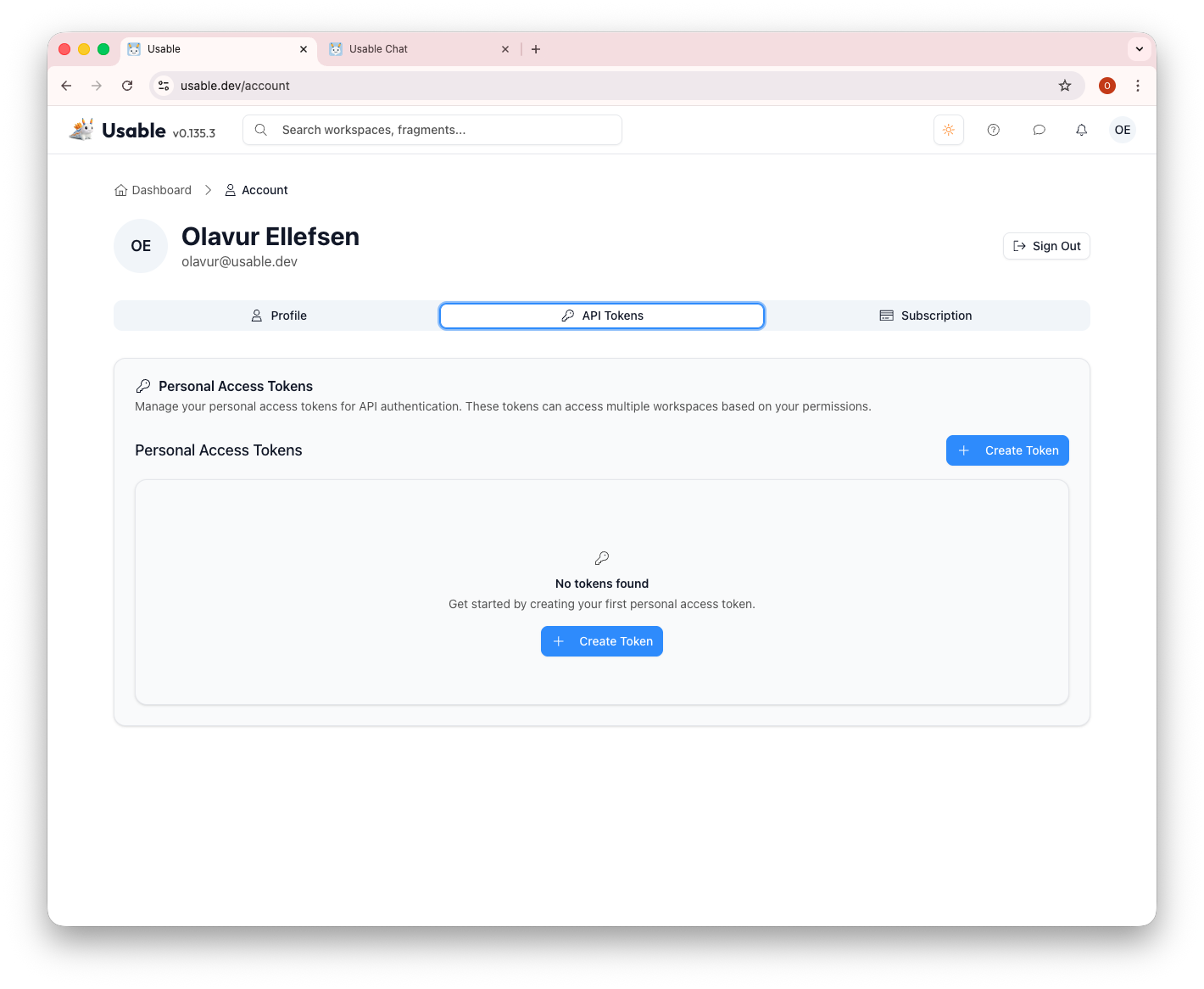
API Tokens: Create and manage personal access tokens for API authentication. Tokens can access multiple workspaces based on your permissions and are used for MCP and API workflows.
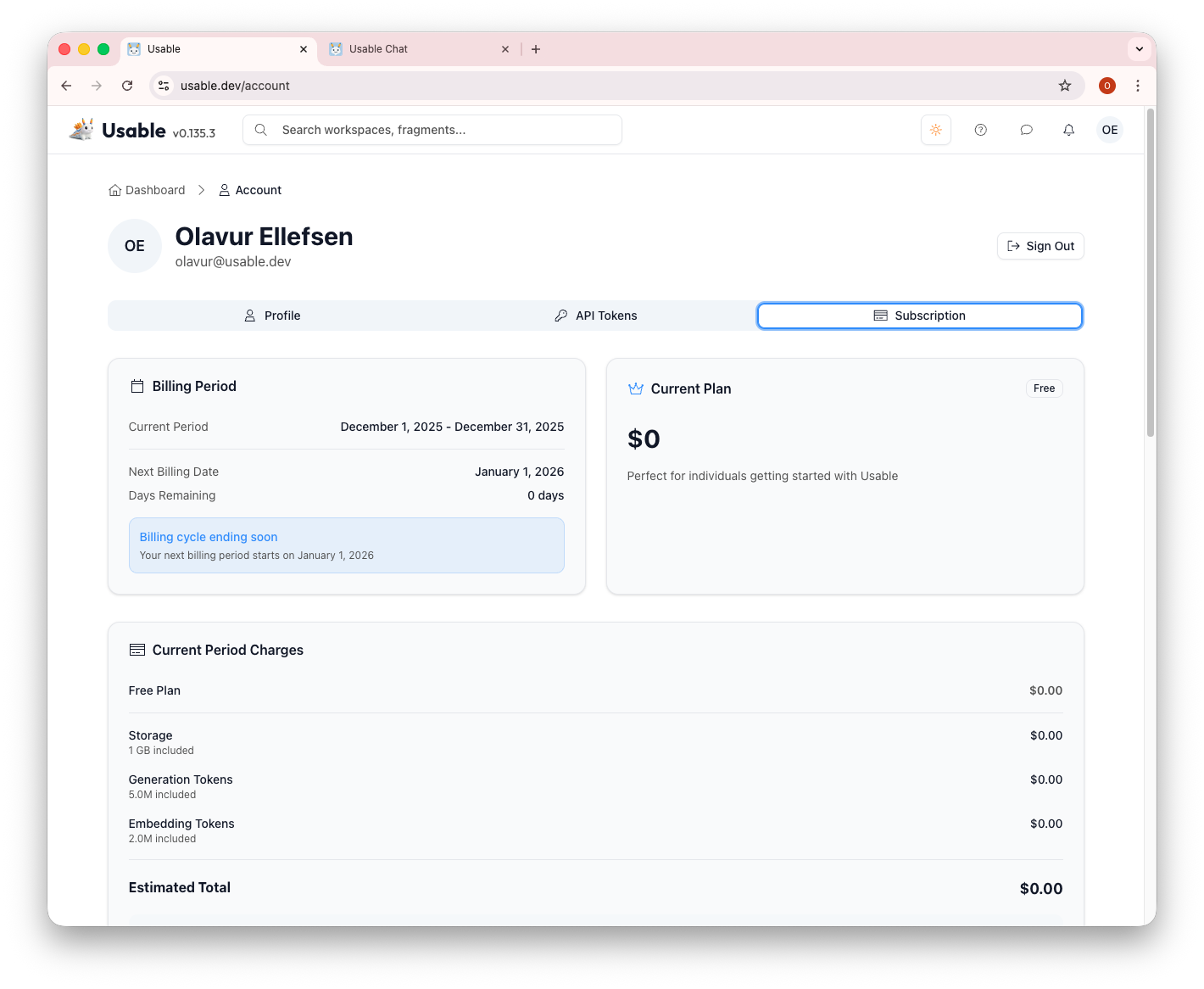
Subscription: View your billing period, current plan, and charges. The Free plan includes 1 GiB storage, 5M knowledge creation tokens, and 500K knowledge search tokens. Upgrade anytime to access more features and higher limits.
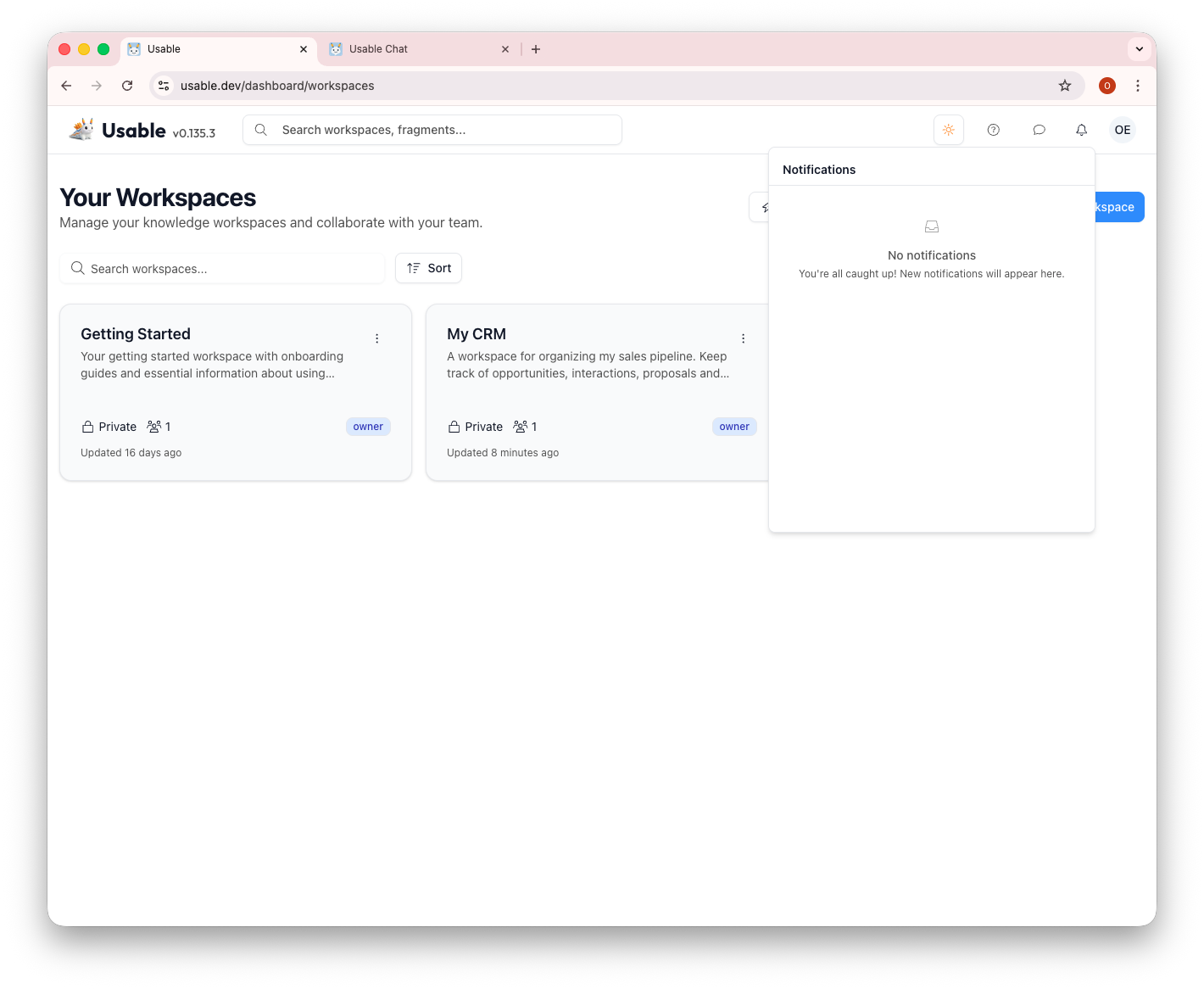
Notifications: Stay informed about updates to your workspaces and fragments. The notification panel shows activity and keeps you connected to your team's work.
Attach files to your fragments and manage them centrally. Files are indexed and can be linked to multiple fragments.
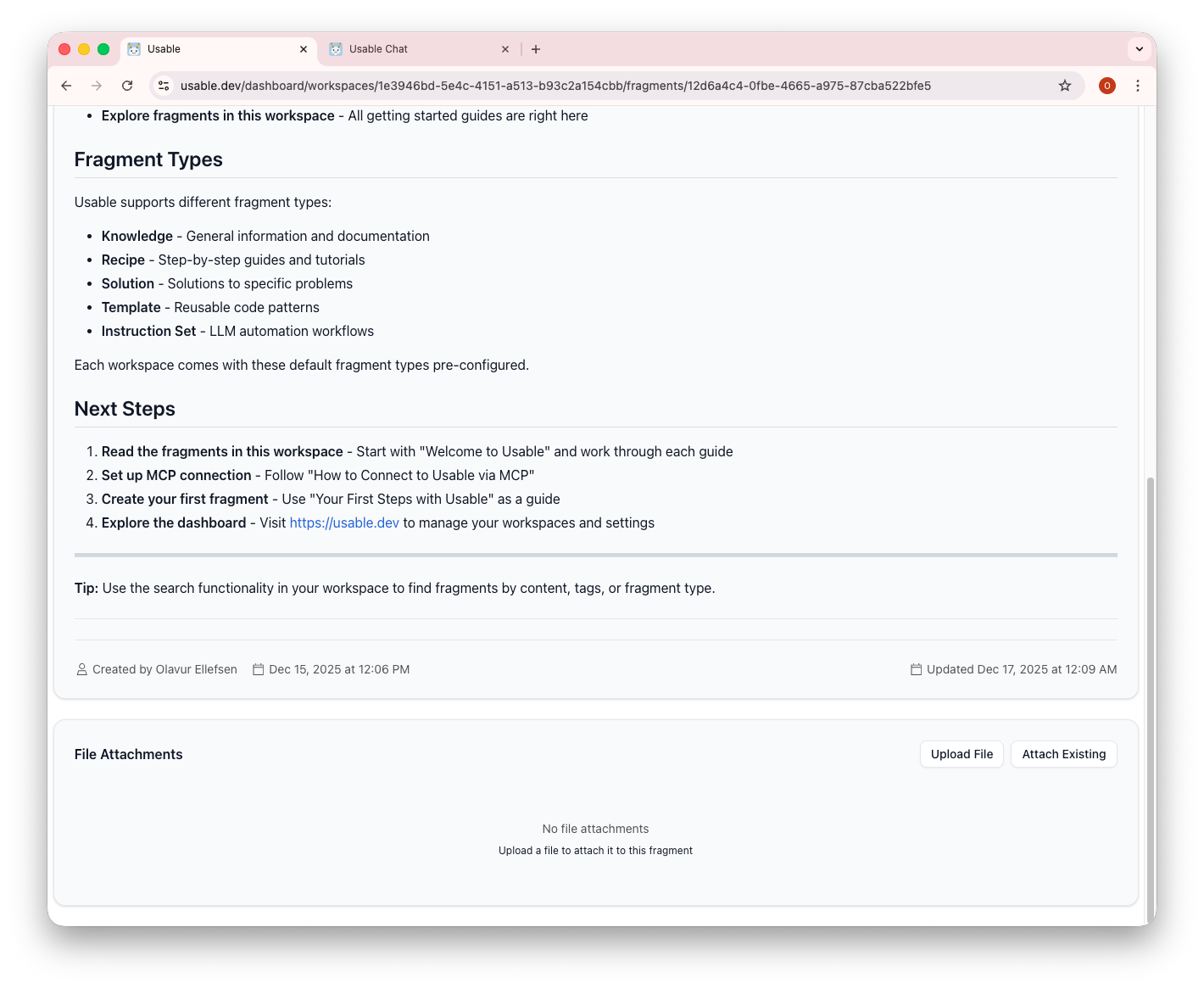
Fragment Types Reference: A helpful guide showing all fragment types: Knowledge, Recipe, Solution, Template, and Instruction Set. Each serves a specific purpose. The "Next Steps" section guides you through onboarding.
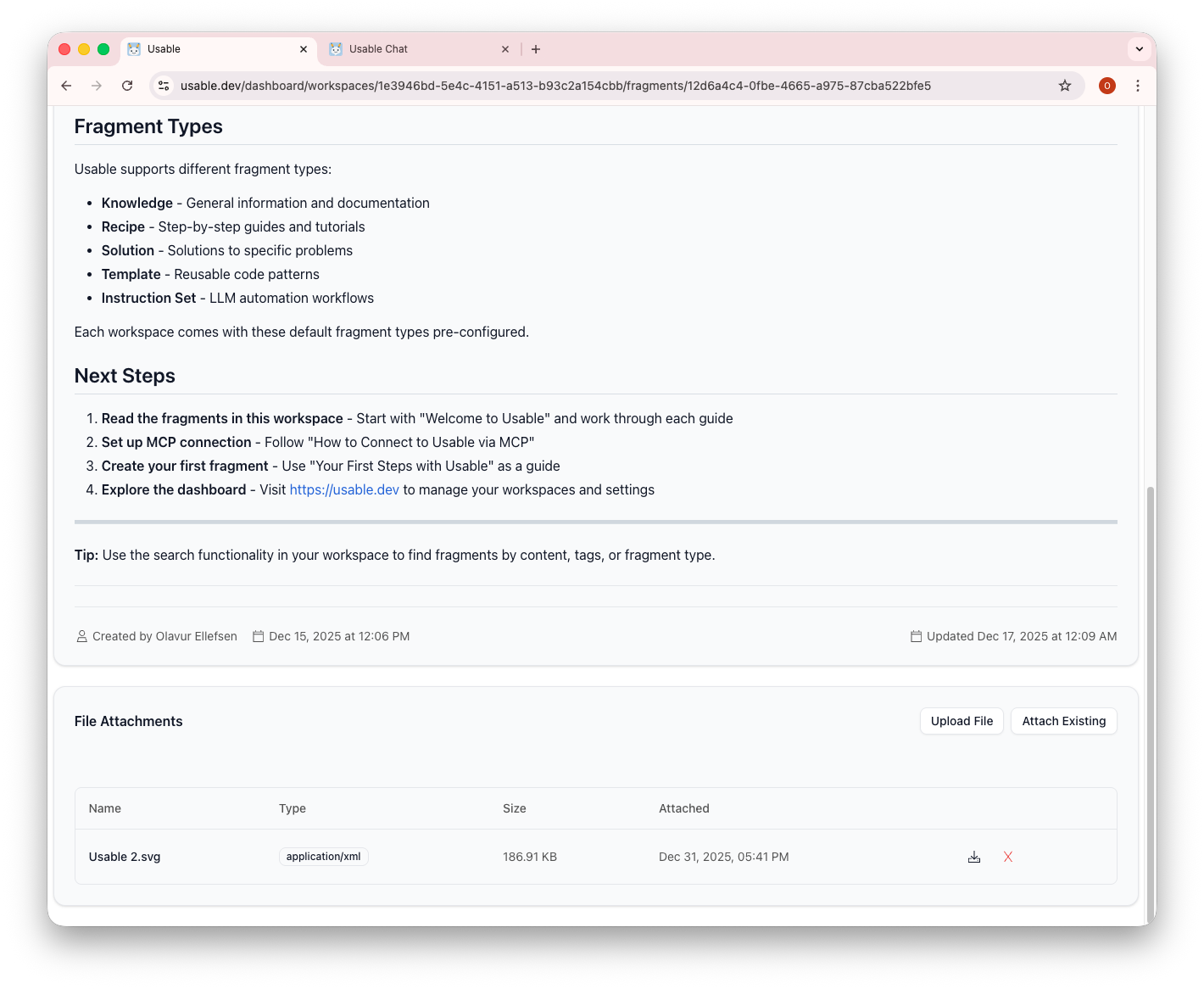
File Attachments: Upload files directly to fragments. Attached files become source material in workspace memory and can be referenced by approved AI tools. Upload any file type up to the limits of your plan.
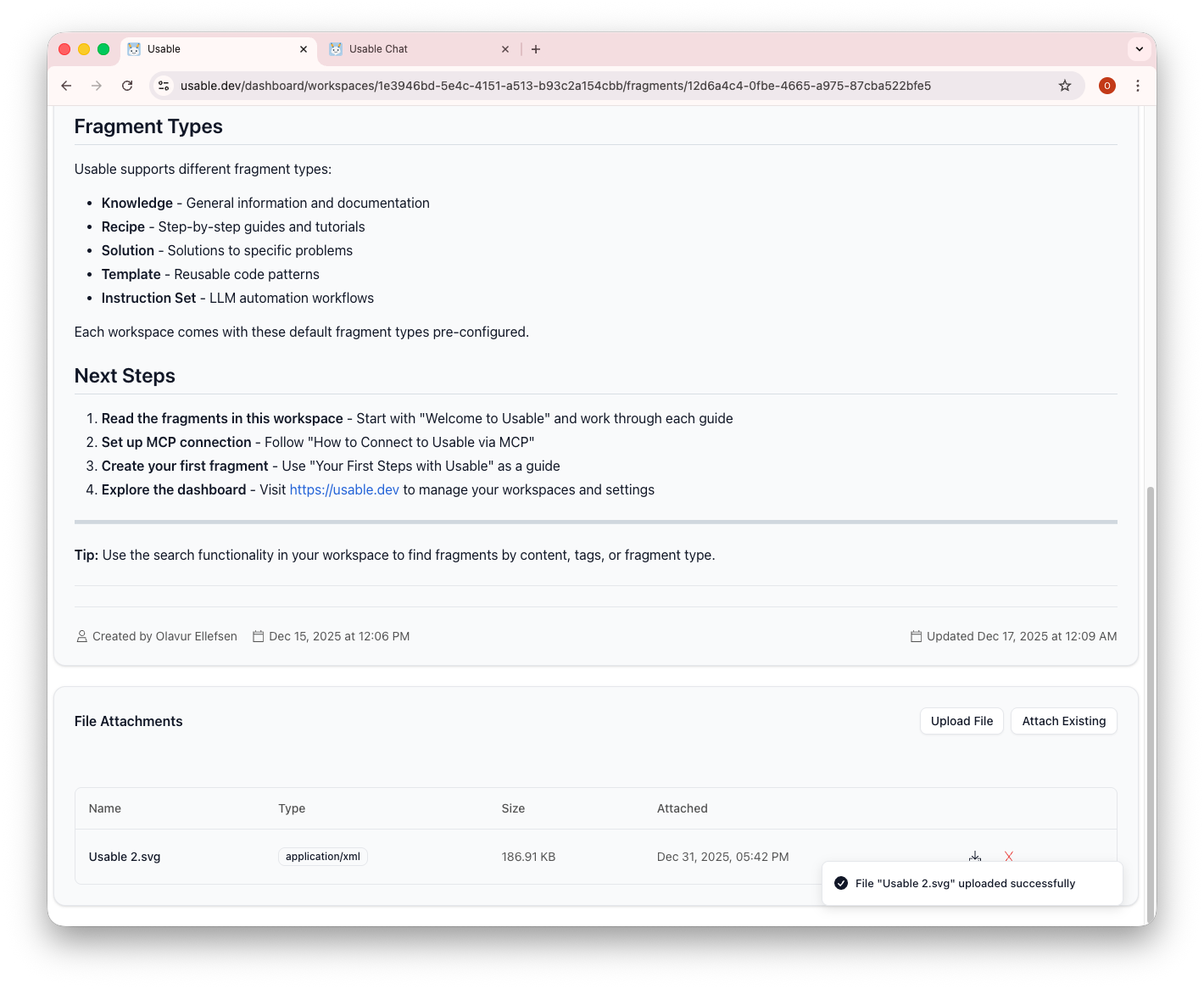
Upload Success: Files are uploaded and attached instantly. The notification confirms success, and the file appears in the attachments list with its type, size, and upload date.
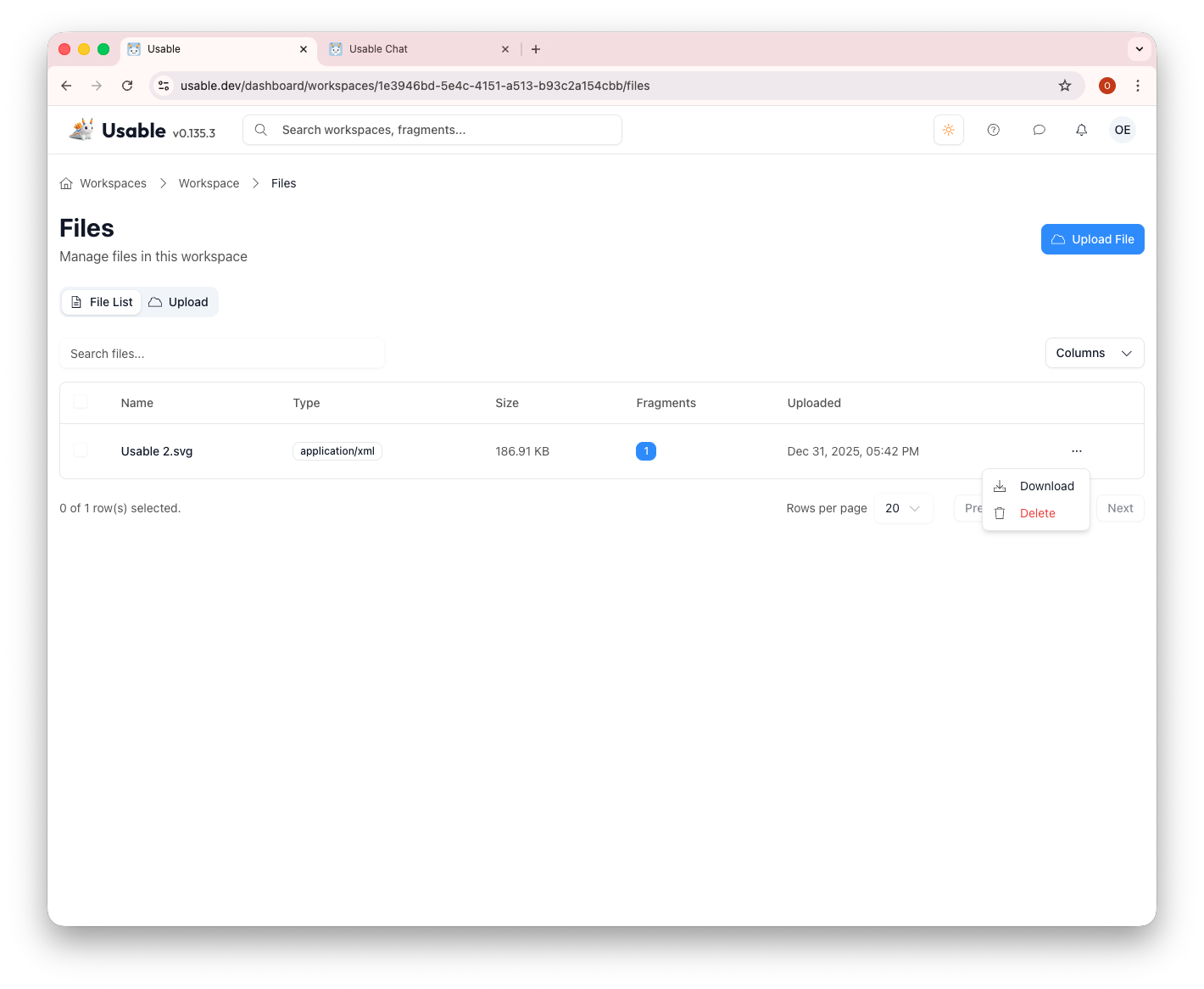
Files Management: View all files in your workspace from the central Files page. See which fragments reference each file, download files, or delete them. Files can be attached to multiple fragments for efficient reuse.